
Getting started
Where to work
Bookmark https://app.yareta.ai — this is the Yareta app (the product formerly discussed as the customer portal). You do not need a separate “platform” login for everyday use.
| Surface | URL | Who |
|---|---|---|
| App | app.yareta.ai | Everyone |
| Billing | billing.yareta.ai | Admins |
| Assessment programme link | app.yareta.ai/entrepreneur-dna | Participants (when issued) |
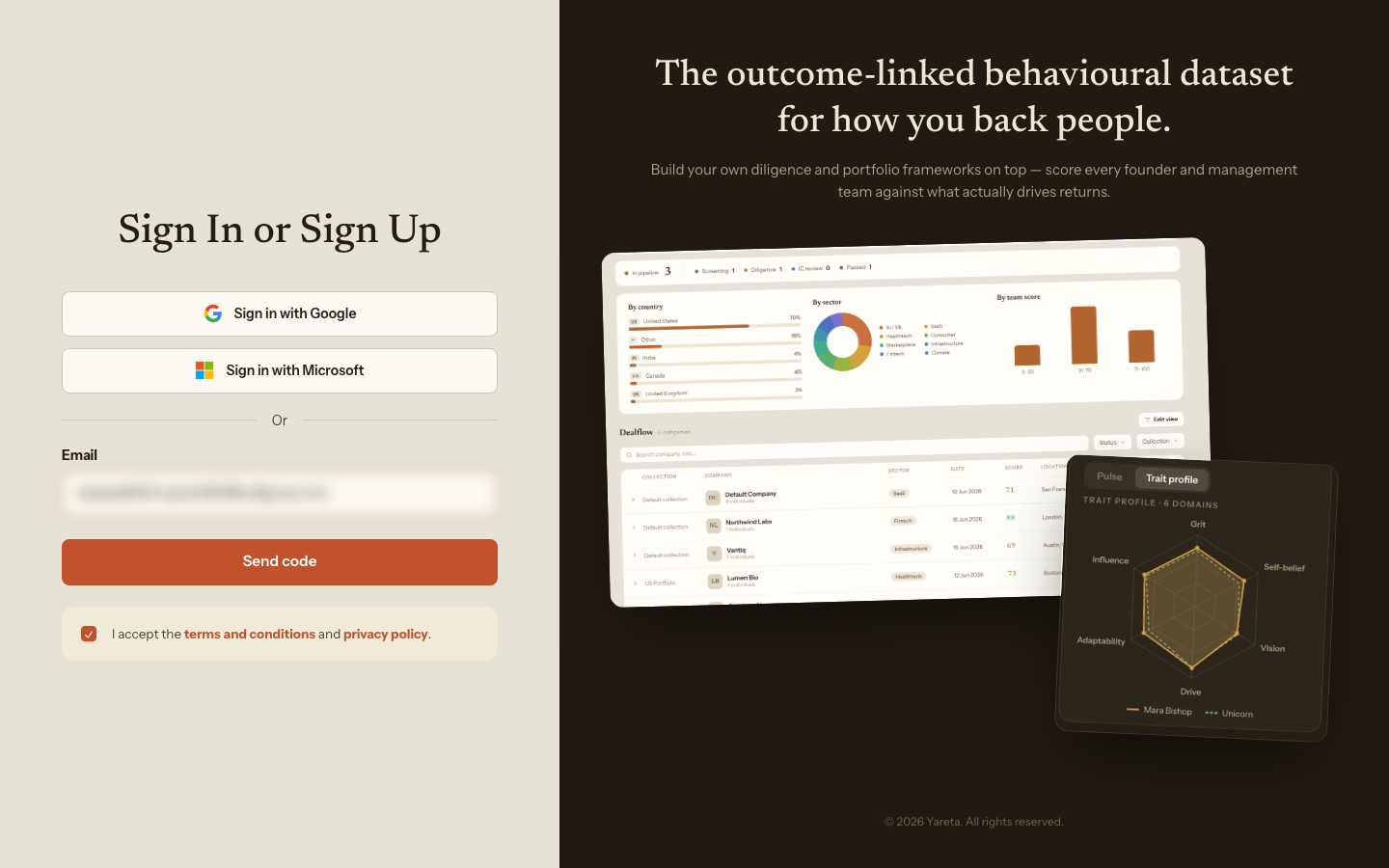
Signing in uses Yareta accounts (email, plus Google or Microsoft when your organisation has enabled them). You are sent to a secure sign-in screen and returned to the app.
- Open the app → Sign in, or go to
/auth. - Choose Google, Microsoft, or email. Email sends a 6-digit code (check spam).
- New users: complete onboarding (use-case selector: investor / organisation / charity / individual).
- You land on Dashboard, or Playground if you are still exploring.
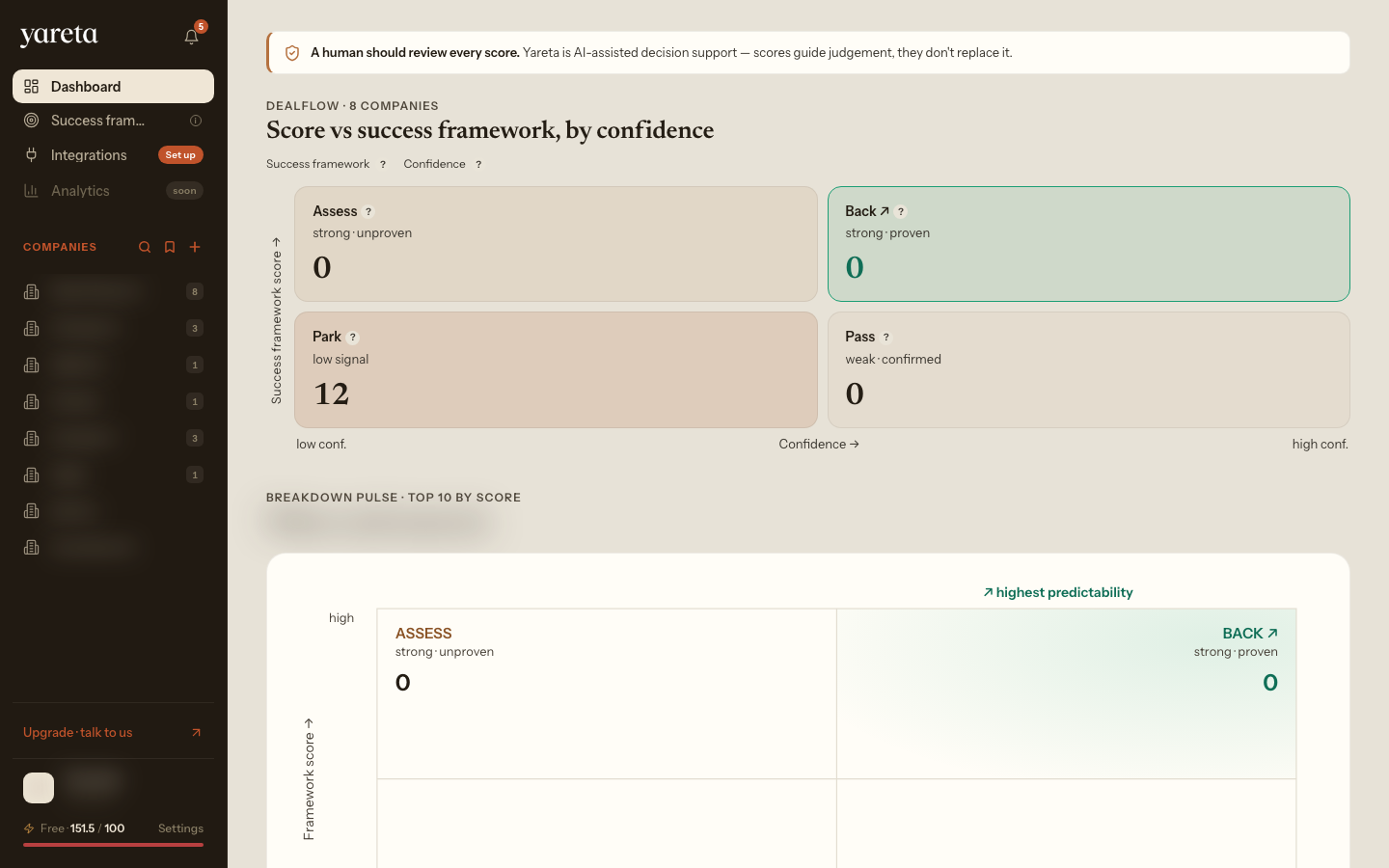
Screen-by-screen (Playground, integrations, signed-in workspaces): Visual tour. Playground detail: Playground.
If you already have a session in another Yareta surface, the app reuses it where cookies allow.
Reset password: /reset-password — time-limited email from Yareta.
First-run checklist
- Confirm account type — this only changes navigation and default templates; scoring is the same engine. Details: Account types.
- Confirm organisation — switch in settings if you belong to more than one.
- Define your use case — select or build your success framework. Start from a Yareta pre-built framework and tailor it in the app.
- Confirm plan / credits — gated features prompt you if balance or plan is insufficient. Billing.
- Recommended: connect one CRM. Pulls in companies or candidates to score, and lets you analyse past successful hires or investments to shape your framework. CRM.
- Add one company or candidate (from CRM or manually) and attach a deck, a transcript, or a CV.
- Open the record when scoring finishes — read fit, confidence, flags, probes.
- Optionally send the Yareta Assessment. Invites.
- Option to request a human psychologist for advanced support. How decisions are made.
- Invite a colleague (org admin).
| Goal | In the app |
|---|---|
| Home | /dashboard |
| Sample flow | Playground → /playground |
| Integrations | /integrations |
| Send assessment | Person / company actions |
If sign-in fails
- Finish the redirect; do not close the tab until you are back on app.yareta.ai
- Sign in with the same email as the invite
- Ask an admin to confirm membership
- Email connect@yareta.co
What “done” looks like
You can open a person or company, see a confidence band, sourced findings, and at least one next action (probe, extra document, or assessment). A named human still decides. Read How scoring works for the product logic behind that screen.