
Investor workspace
Primary app: app.yareta.ai
This guide follows the investor journey in order: define what success looks like, connect your pipeline, then score founders and teams against it. Screenshots use demo names with personal details anonymised. Shared pages (integrations, settings) are the same for organisation workspaces; see the linked guides at the end of each section.
For a shorter annotated tour across all personas, see Visual tour.
1. Before you start: Playground (guest)
Try investor scoring without signing in at /playground/investor: pick a Success Framework → upload founder evidence → score → preview the report.
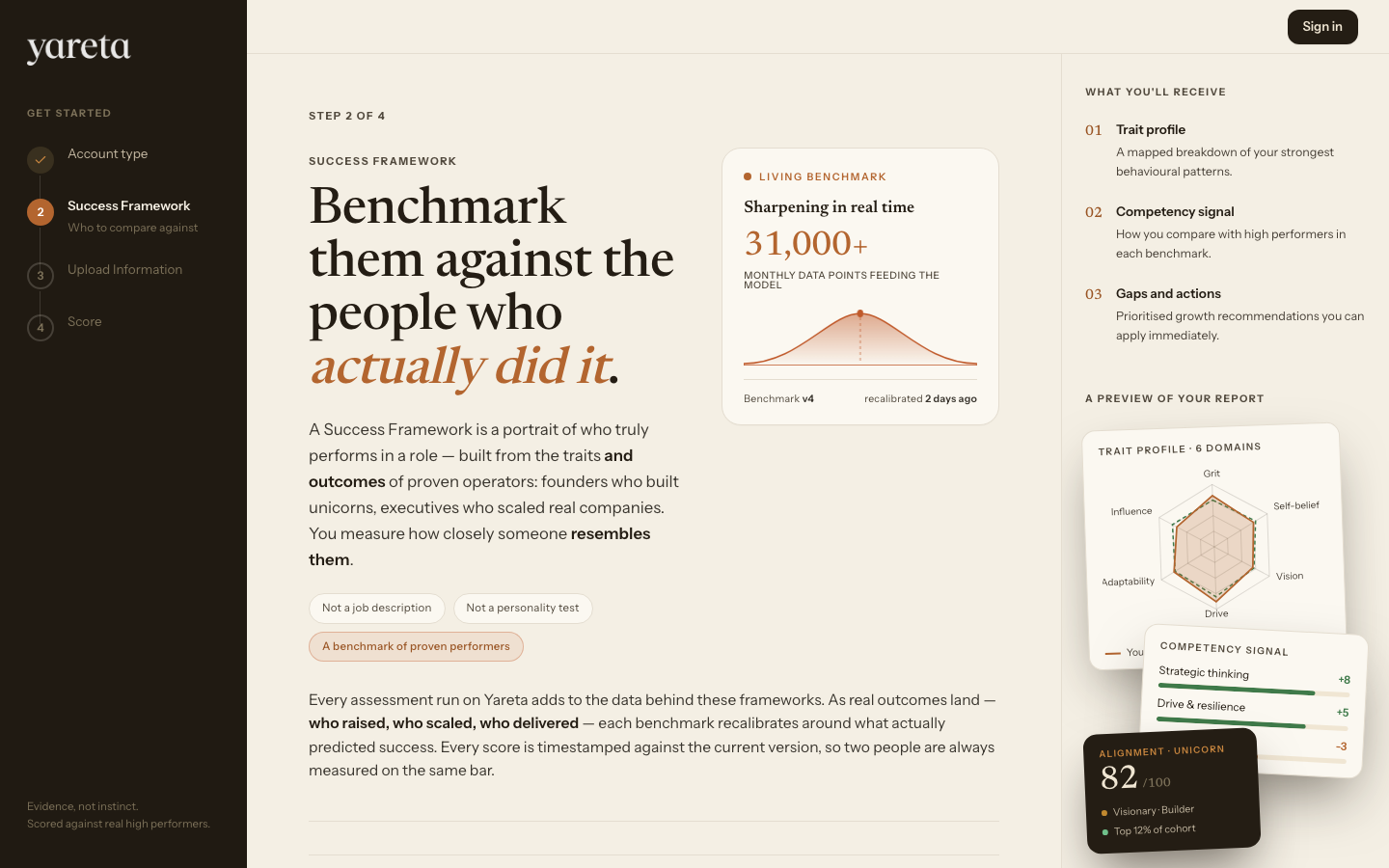
Full step-by-step with every screen: Playground guide — Investors.
2. Sign in
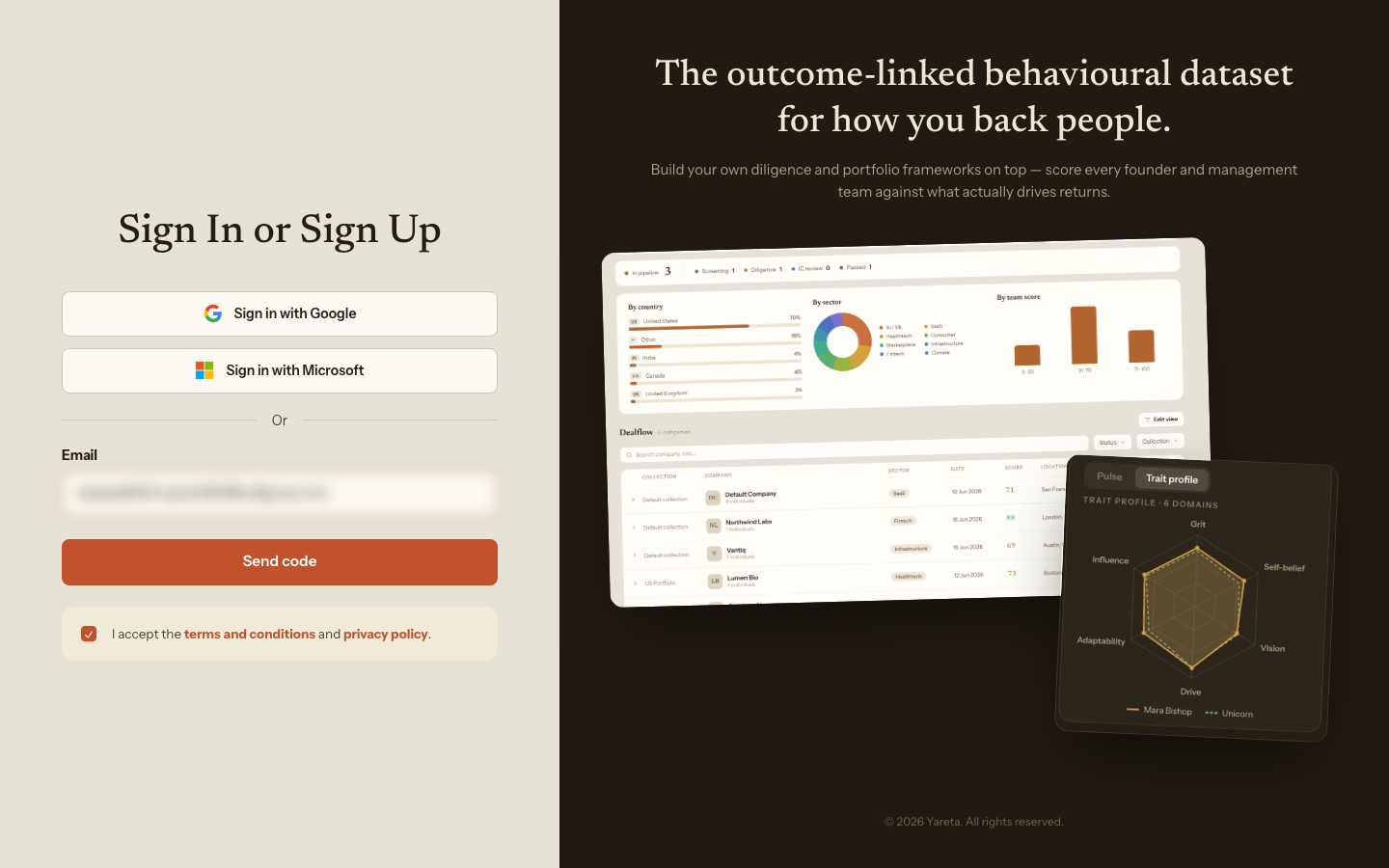
Go to app.yareta.ai/auth. Accept the terms if asked, enter your email, click Send code, then enter the 6-digit code from your inbox.
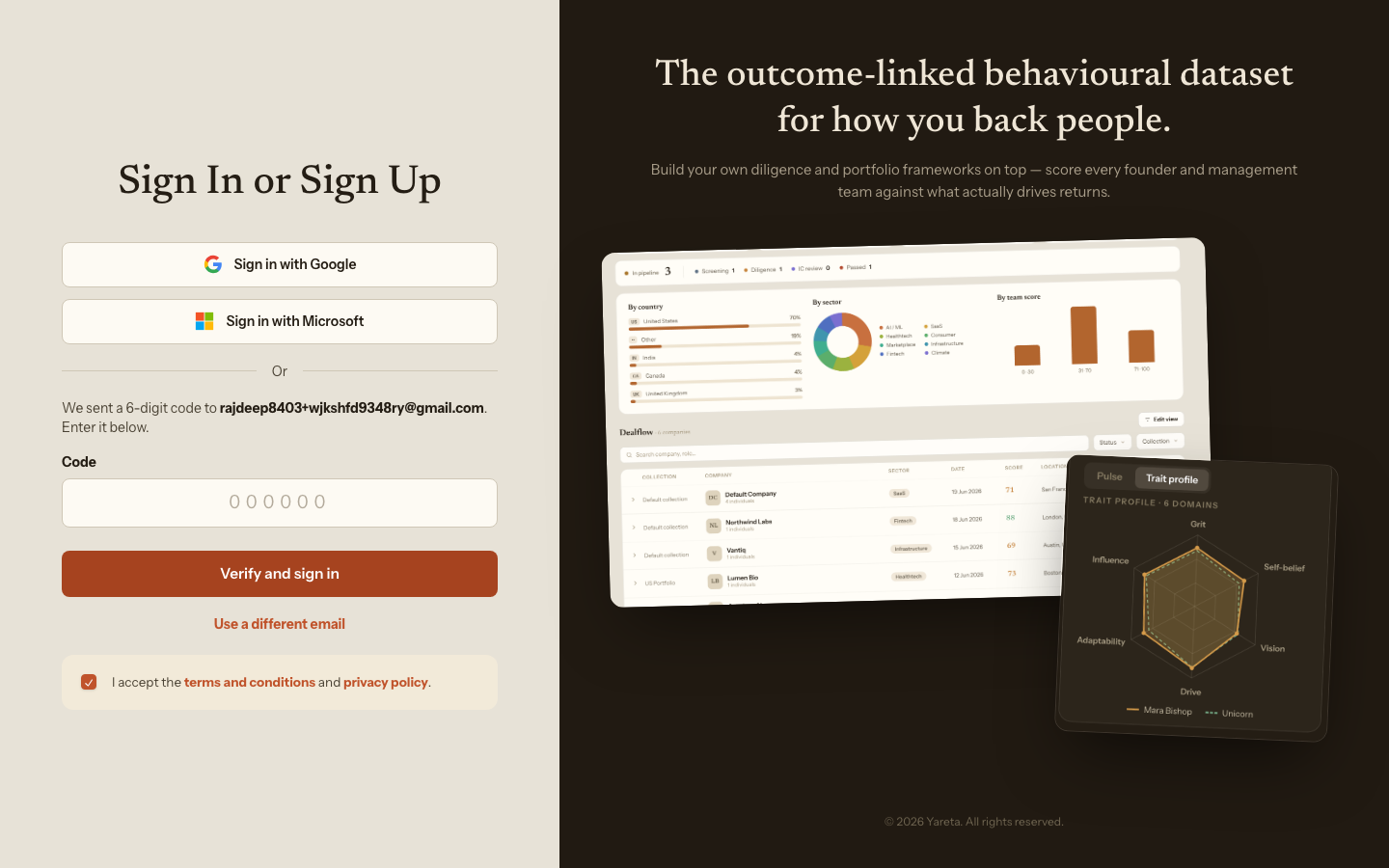
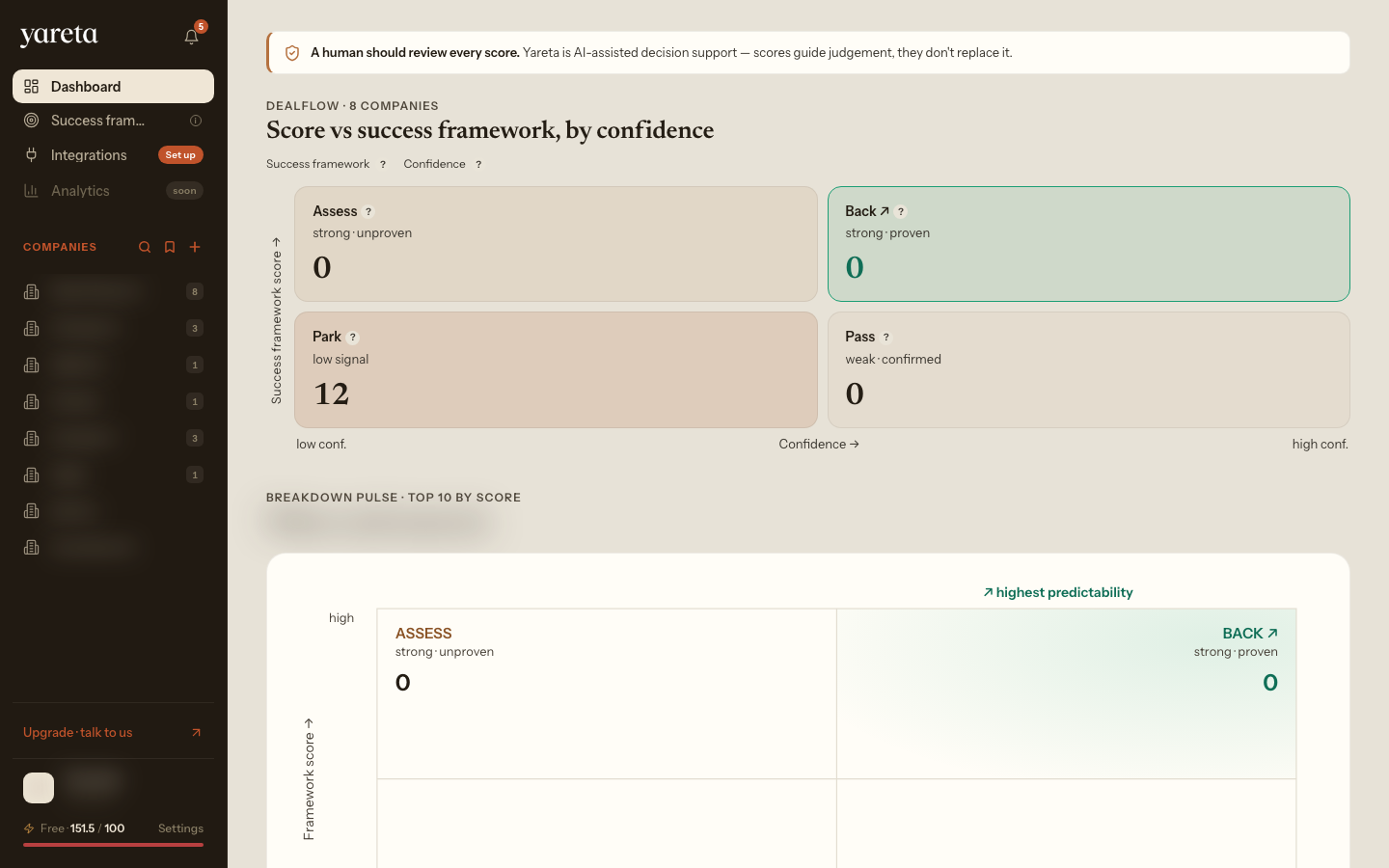
After verification you land on the investor dashboard (/dashboard/investor).
3. Success Frameworks hub
Route: /investor/benchmark
Start here. Every score in Yareta is produced against a Success Framework, so set up the frameworks for the founder roles and stages you invest in before adding companies. Browse pre-built templates, or create your own.
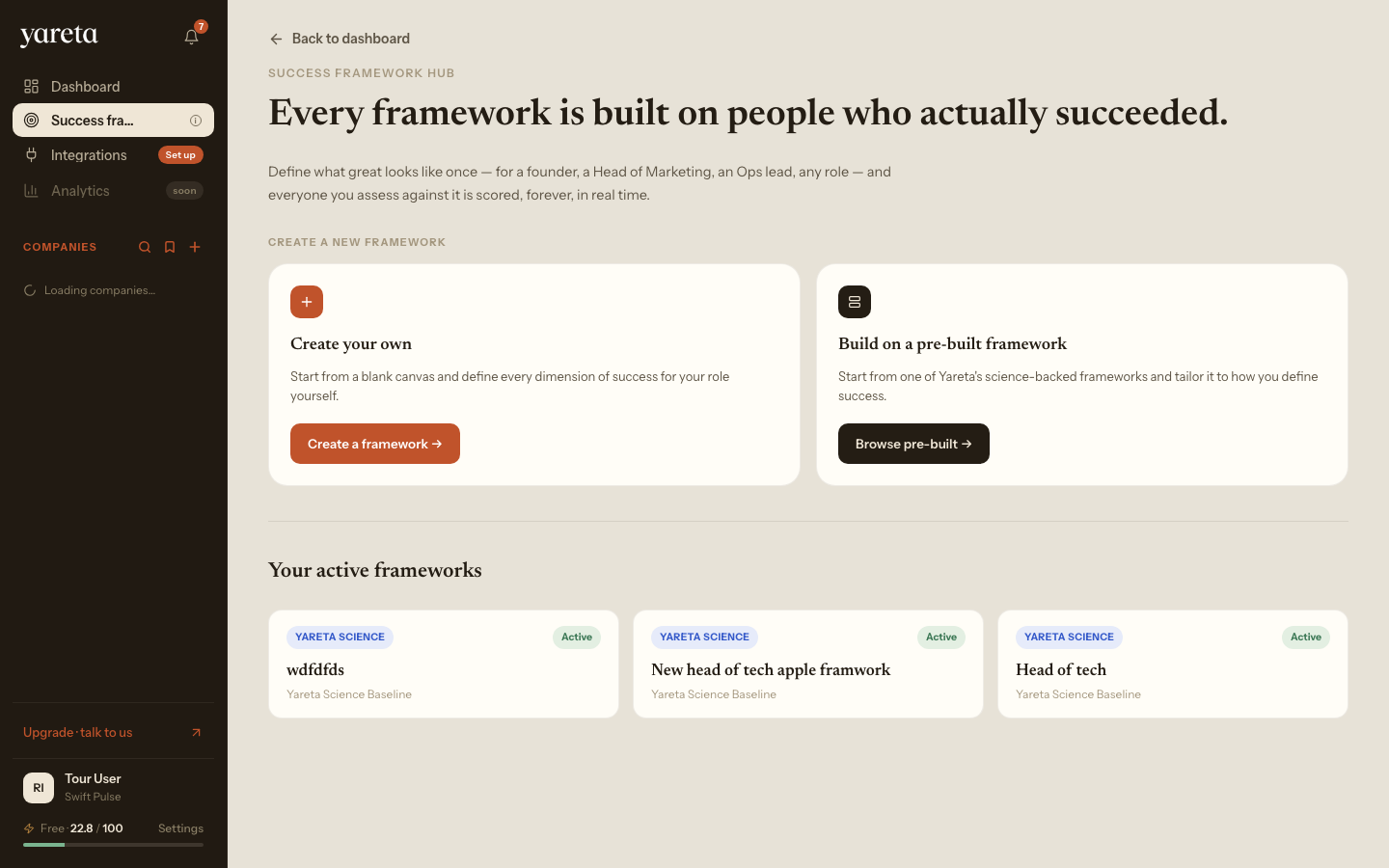
Organisation users use /company/benchmark and charity users /charity/benchmark: same hub, different route.
4. Create a Success Framework
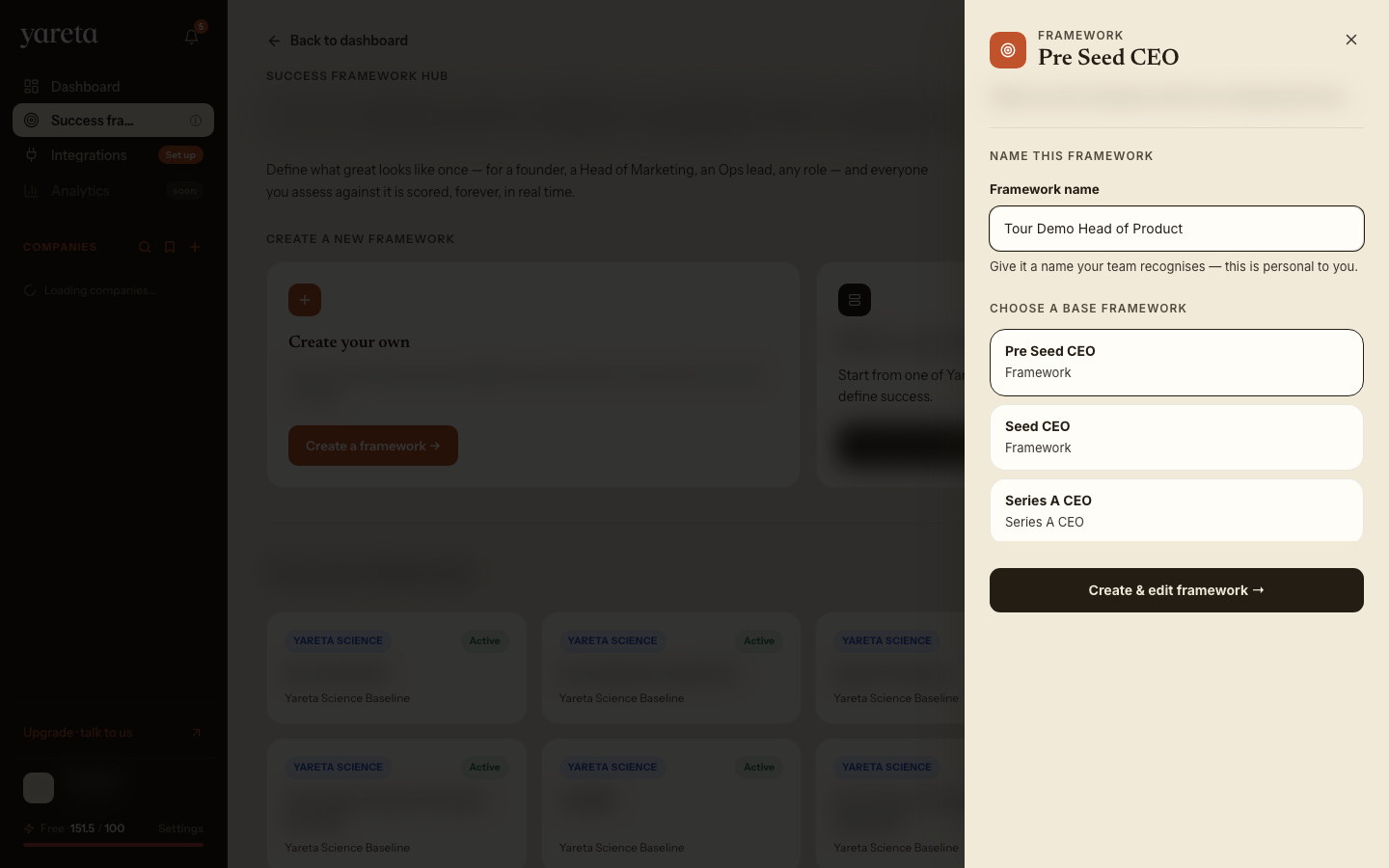
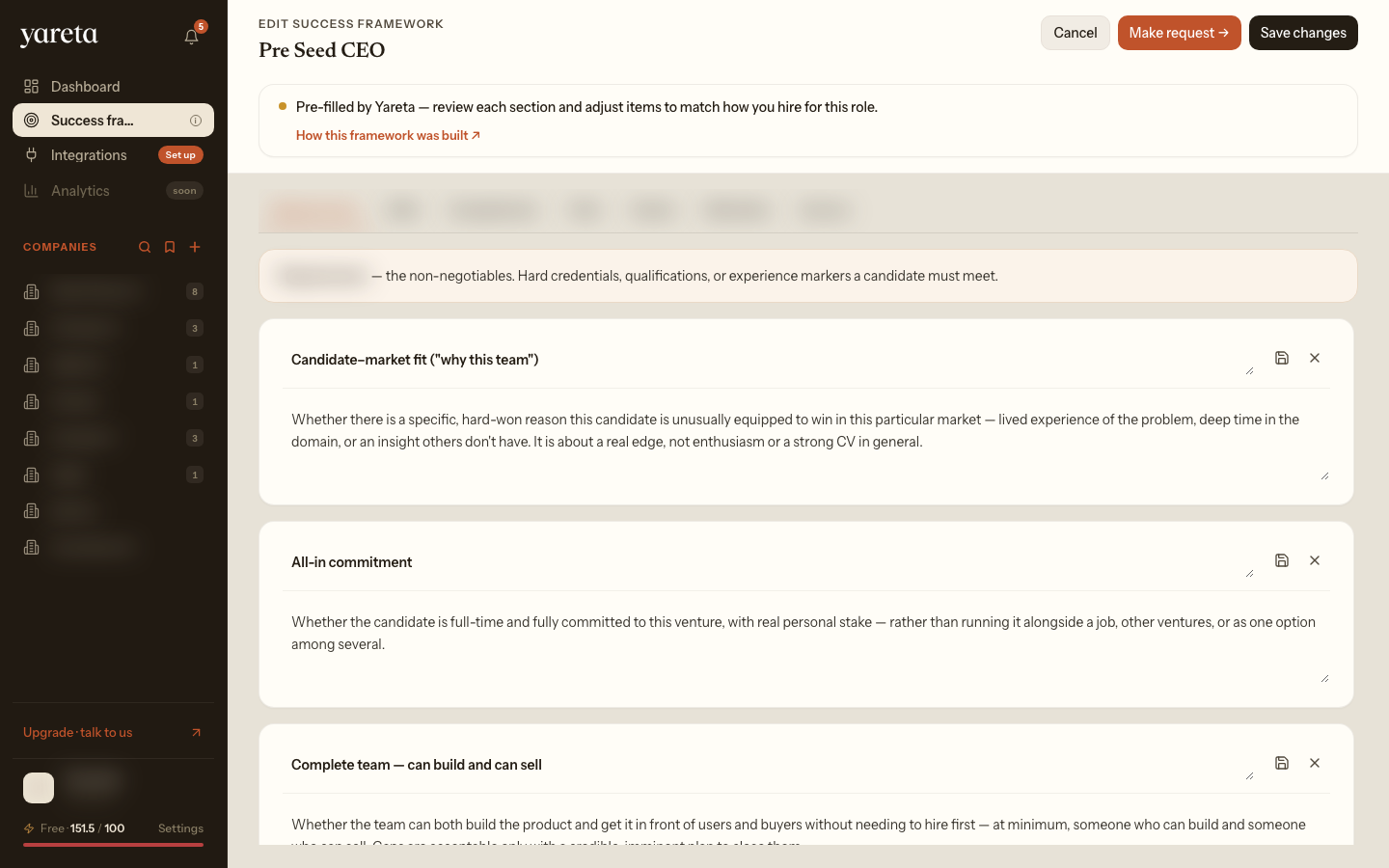
From the Success Frameworks hub, choose Create a framework → to open the side sheet, name your framework and pick a Yareta base template. Create & edit framework → opens the full-page editor at /dashboard/investor/add-role, where you adjust Requirements, Skills, Competencies, Traits, Culture and Motivation before saving.
To change an existing framework, open it from the hub and choose Edit framework on the detail page.
More detail: Success Frameworks in the app.
5. Connect your CRM and tools
Route: /integrations
Recommended next step. Connect Attio, HubSpot, Airtable, Slack, Fireflies, Google Drive and more so companies, founders and evidence flow in automatically. Your outcomes can flow back the same way, which is what calibrates your frameworks over time.
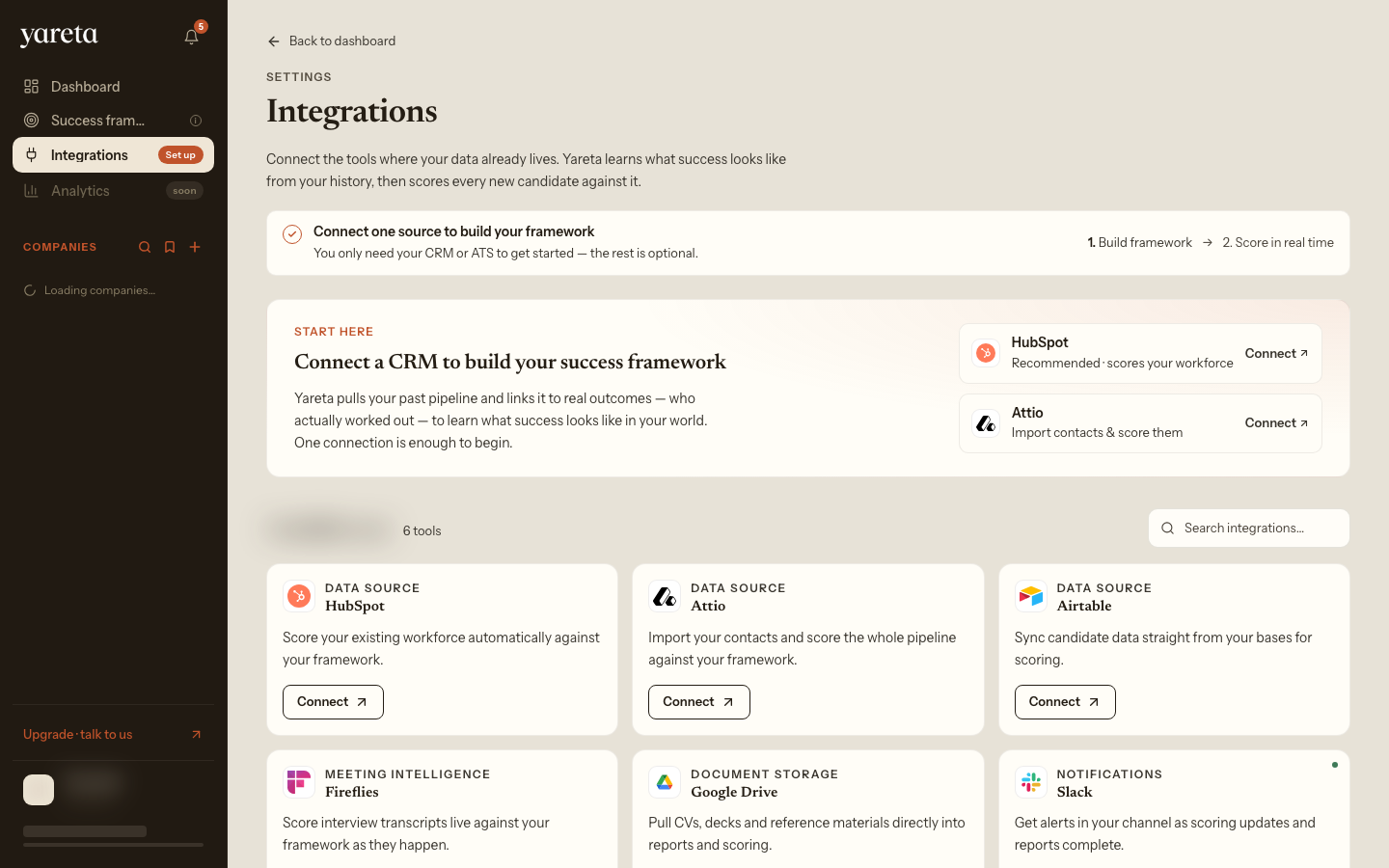
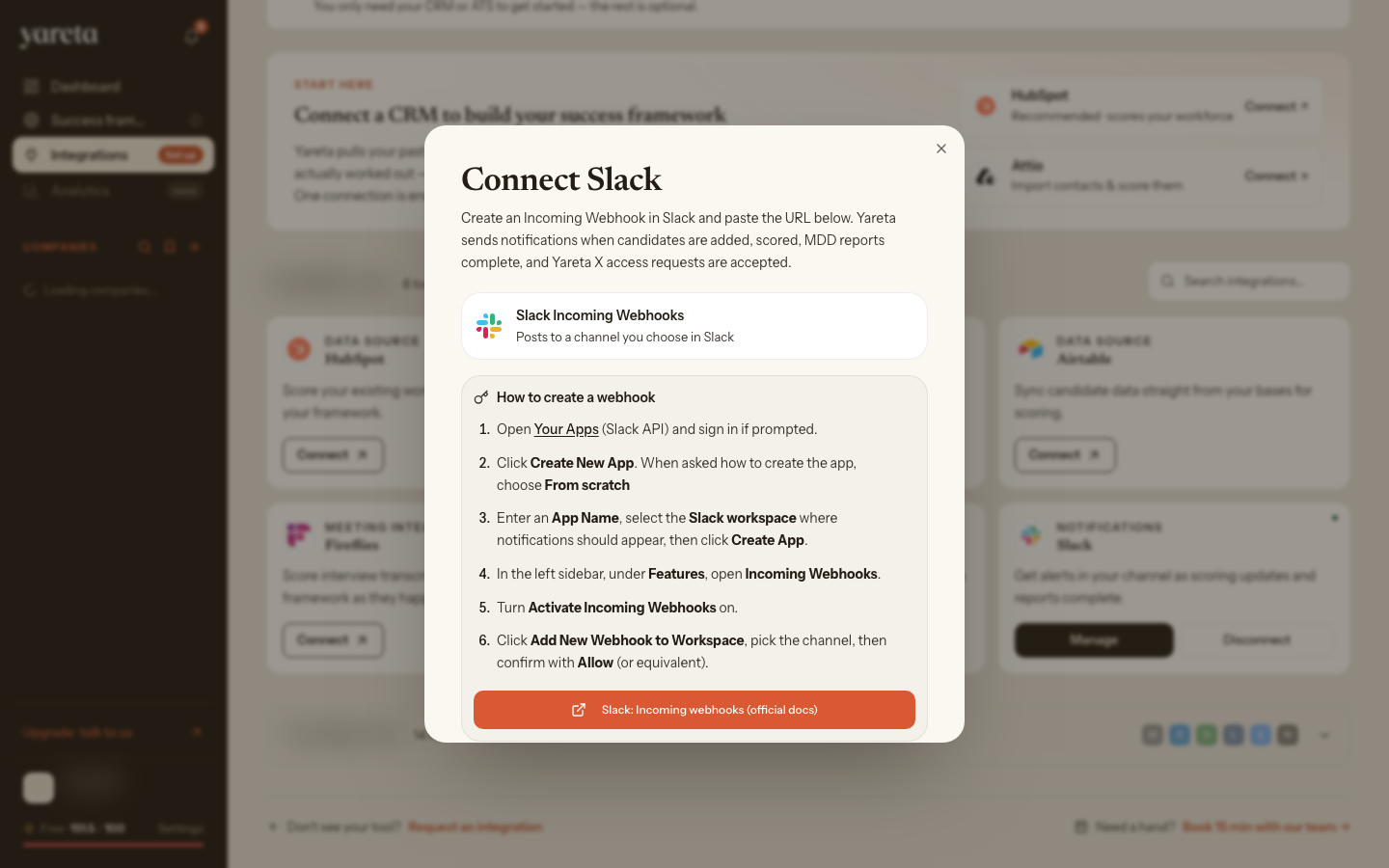
In-app walkthrough: Integrations in the app. Connector how-tos: CRM, Slack.
6. Investor home: dealflow
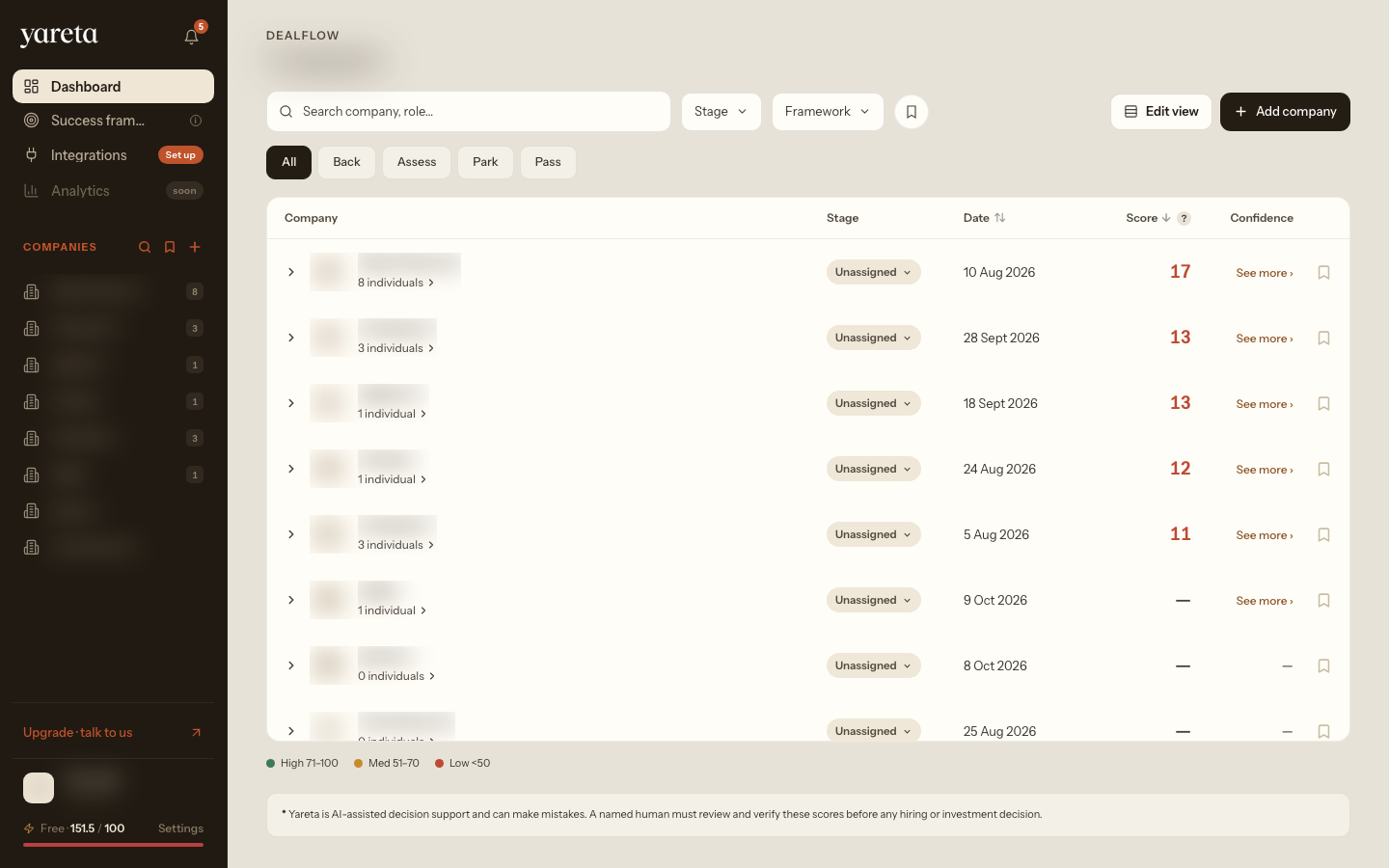
Route: /dashboard/investor
Your home screen shows dealflow stats, filters (stage, framework, bookmarks) and a table of companies. Companies synced from your CRM appear here automatically.
7. Add a company manually
If your CRM isn’t connected yet, click Add company on the dashboard and choose Add manually.
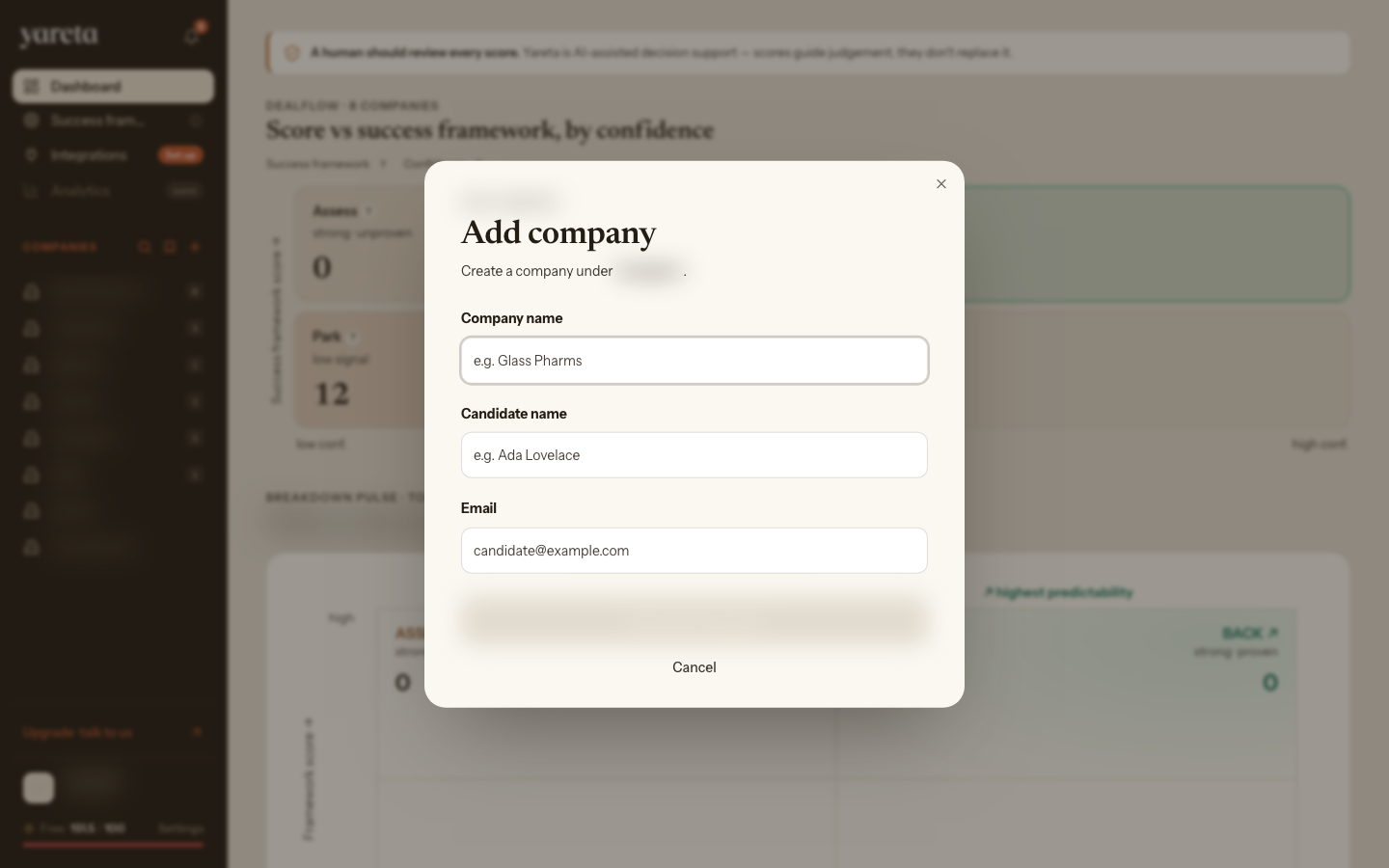
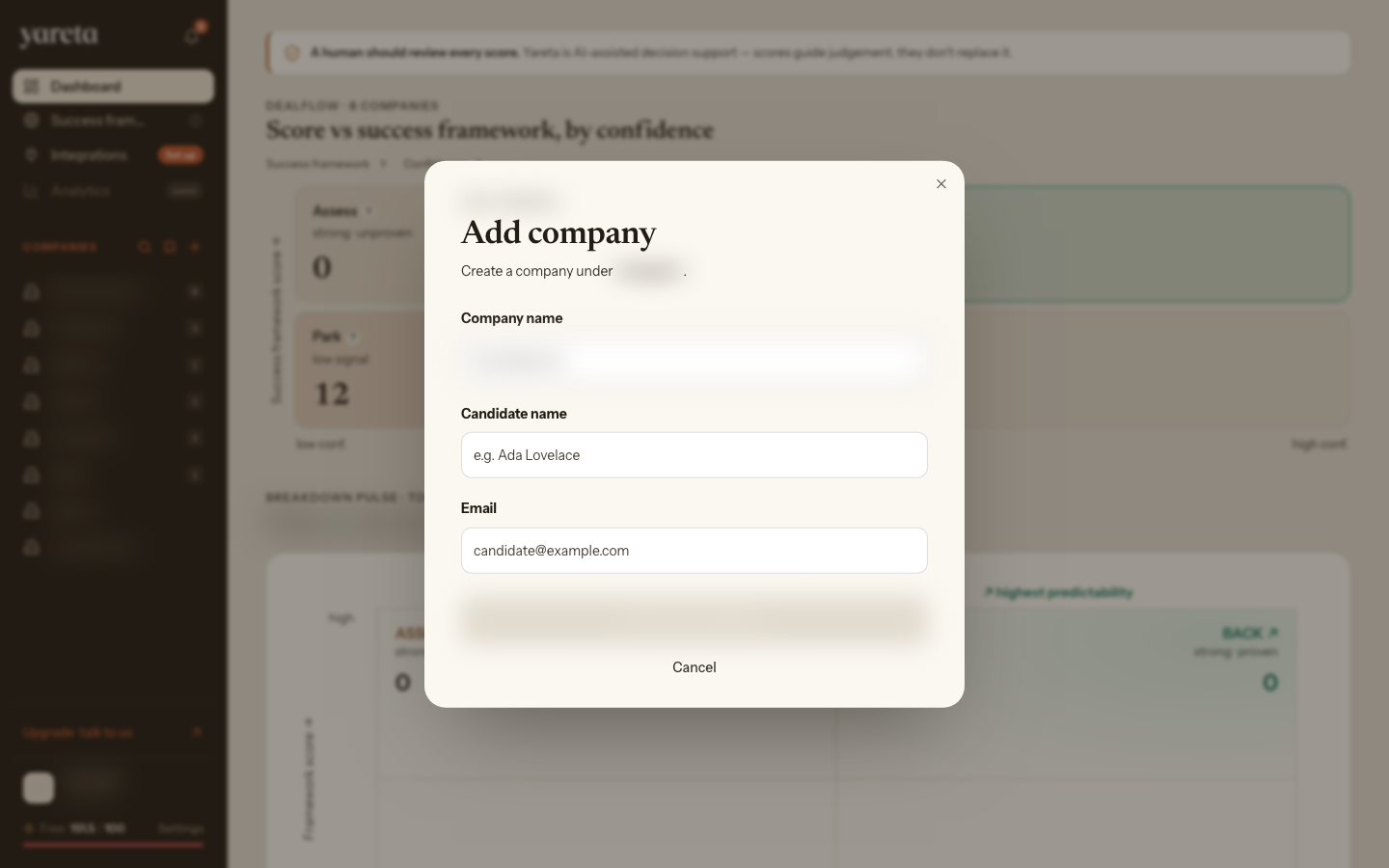
Enter the company name and submit. Demo docs use Tour Demo Co as a placeholder.
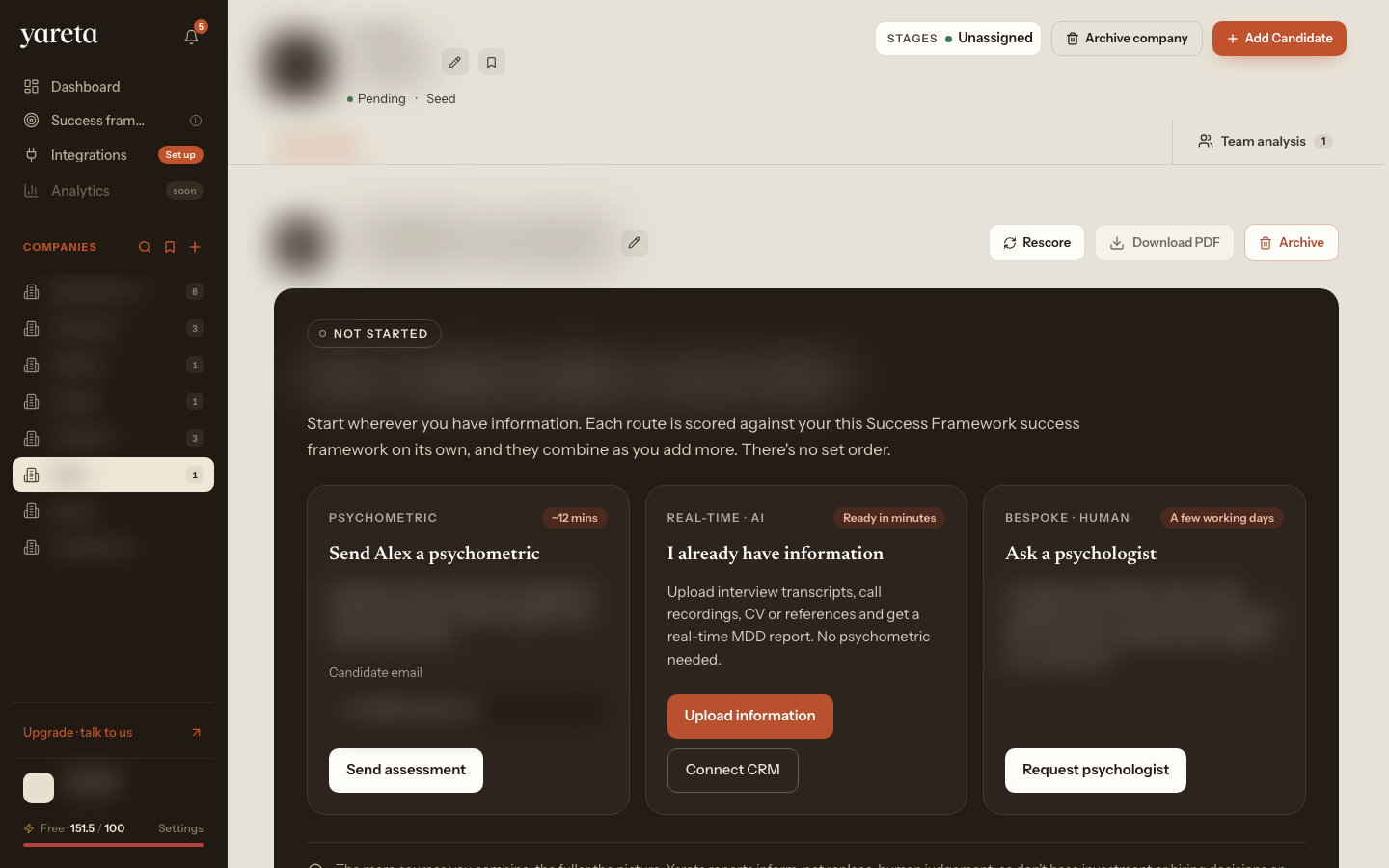
8. Empty company: getting started
Route: /investor/:groupId/:companyId
When a company has no founders yet, the Team analysis tab shows a guided empty state: send the Yareta Assessment, or add a founder and upload your own materials.
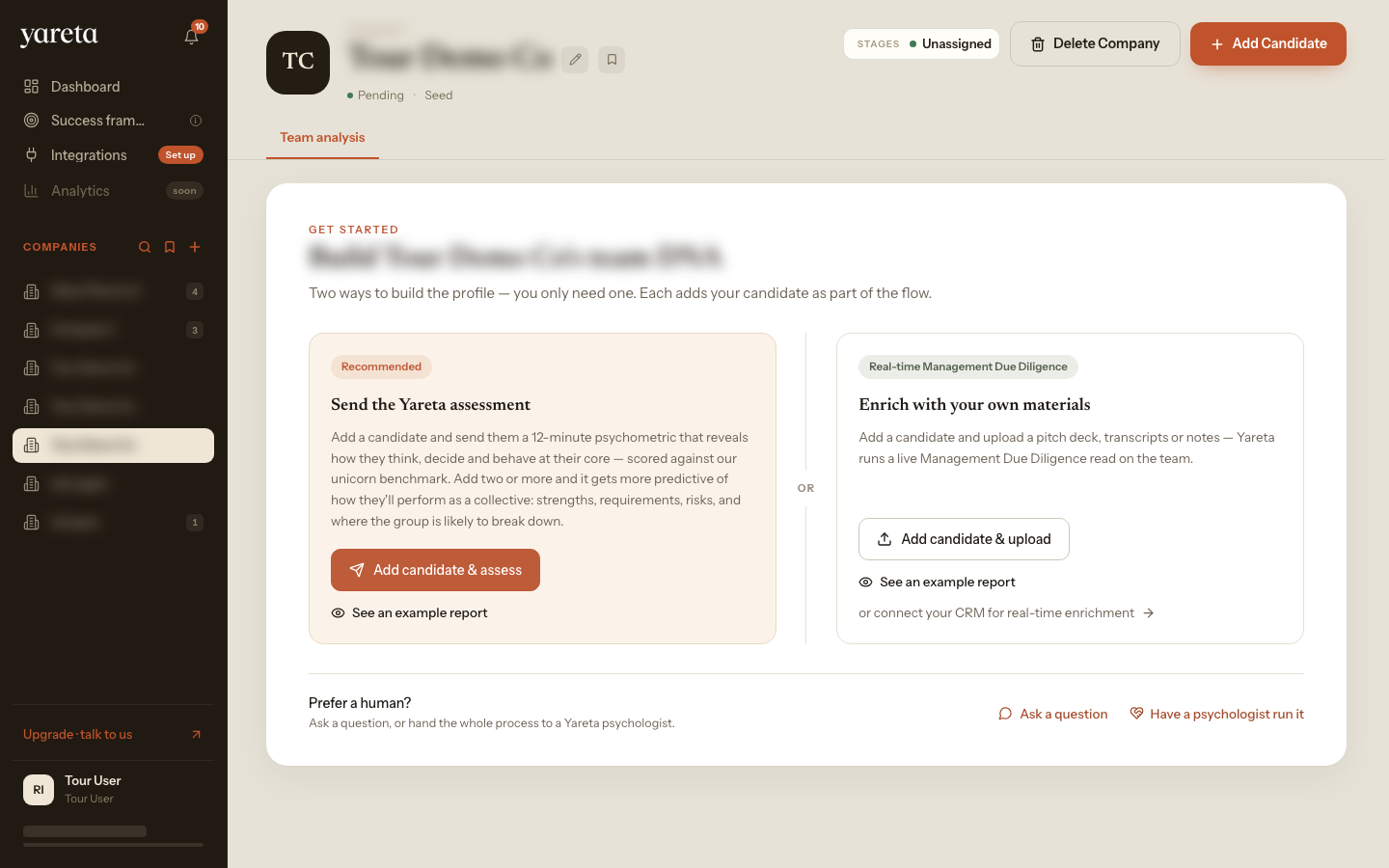
Choose Add candidate & assess (recommended) to add someone and send the Yareta Assessment in one step:
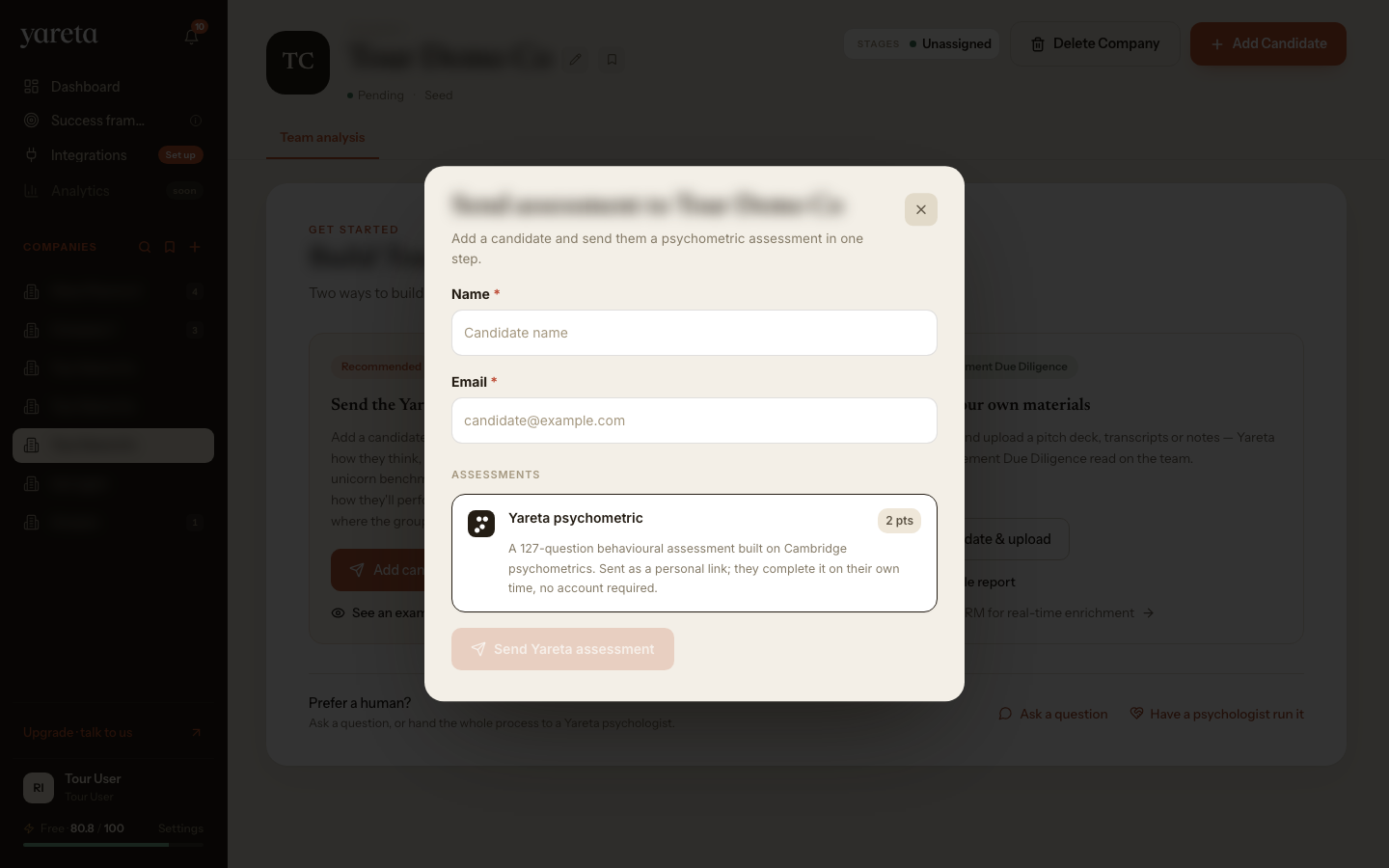
9. Add a founder
Click Add candidate on the company page. Choose Add manually to enter name, email, role and optional evidence, or import from Attio, HubSpot or Airtable when connected.
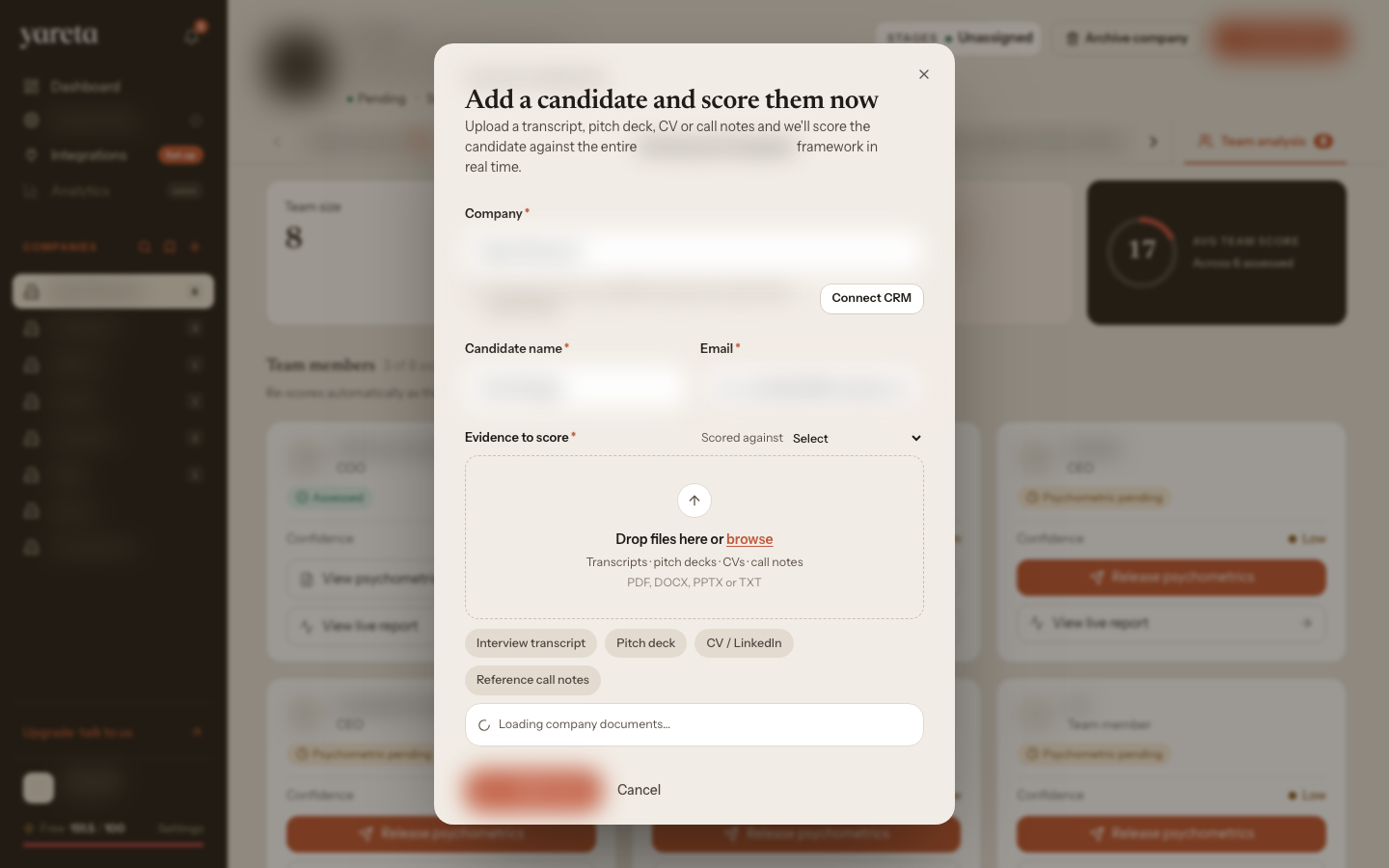
Attach the Success Framework you set up in step 4 at creation, or attach one later.
10. Upload evidence and score
Open a founder from the company page or dealflow table.
Route: /investor/:groupId/:companyId/:founderId
Upload CVs, transcripts, decks or notes as evidence. With a framework attached, run Score (or Enrich profile) to generate the Success Framework Score, gaps and confidence.
While scoring runs, the status shows as processing or reprocessing:
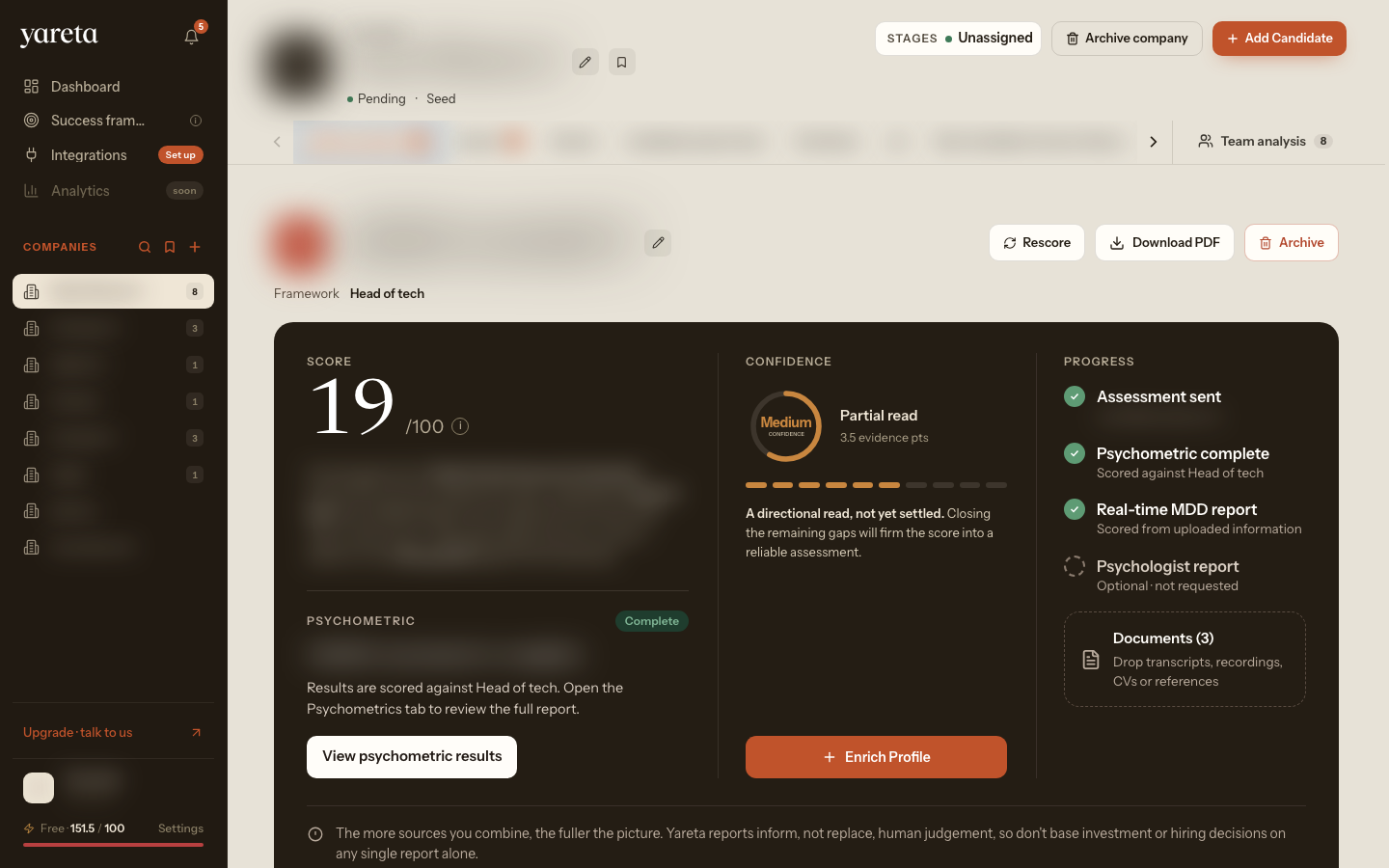
Product background: How scoring works.
11. Founder profile: overview
The founder view shows the overview, documents, Success Framework Score and quick actions. This is where you read the real-time diligence output: flags, value-creation drivers, probing questions and confidence.
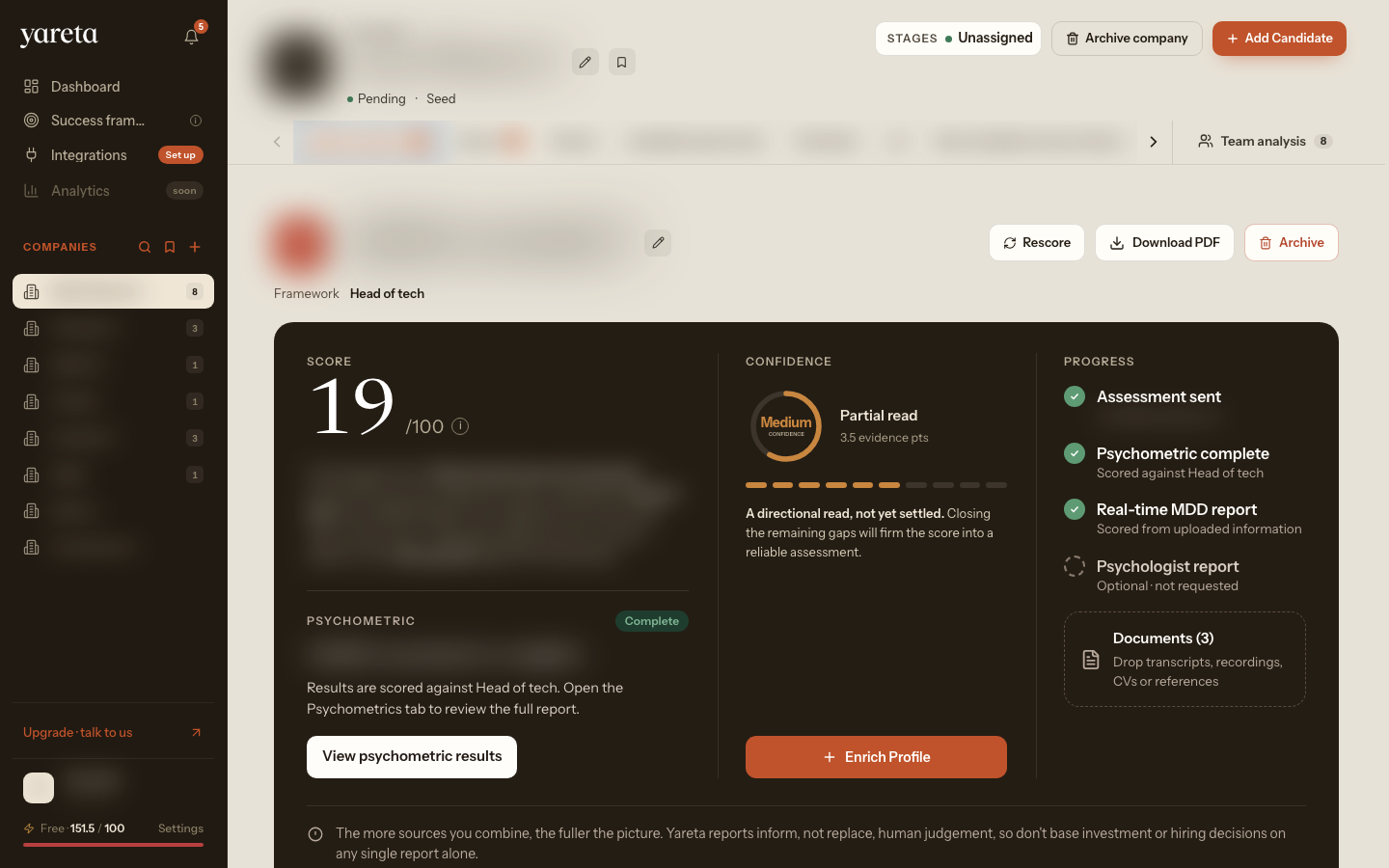
12. Send the Yareta Assessment
From the founder page or company team view, choose Send assessment (shown as Send psychometric on some screens). The founder receives a secure email link and doesn’t need a Yareta account.
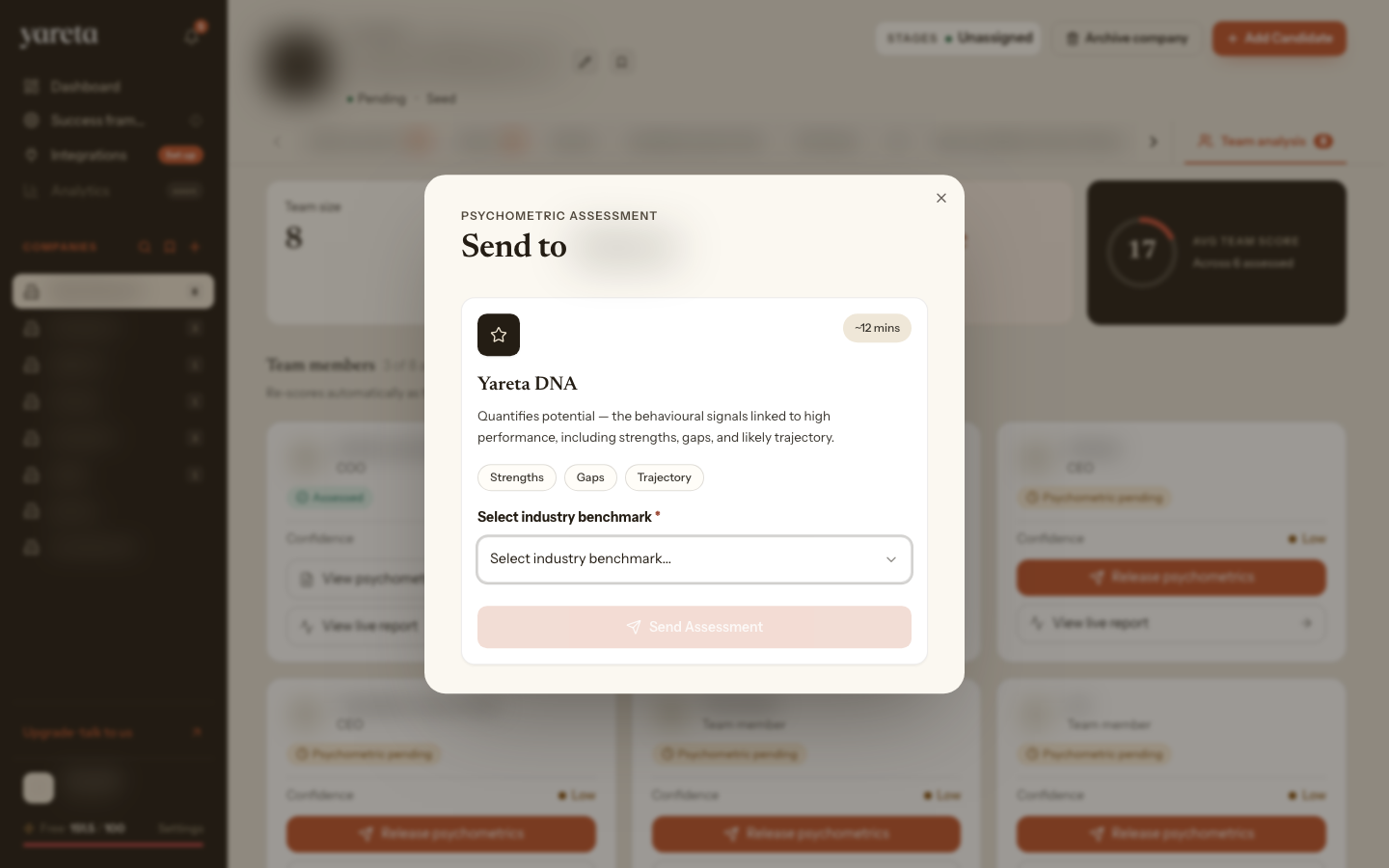
Details: Invites and assessments.
13. Psychometrics tab
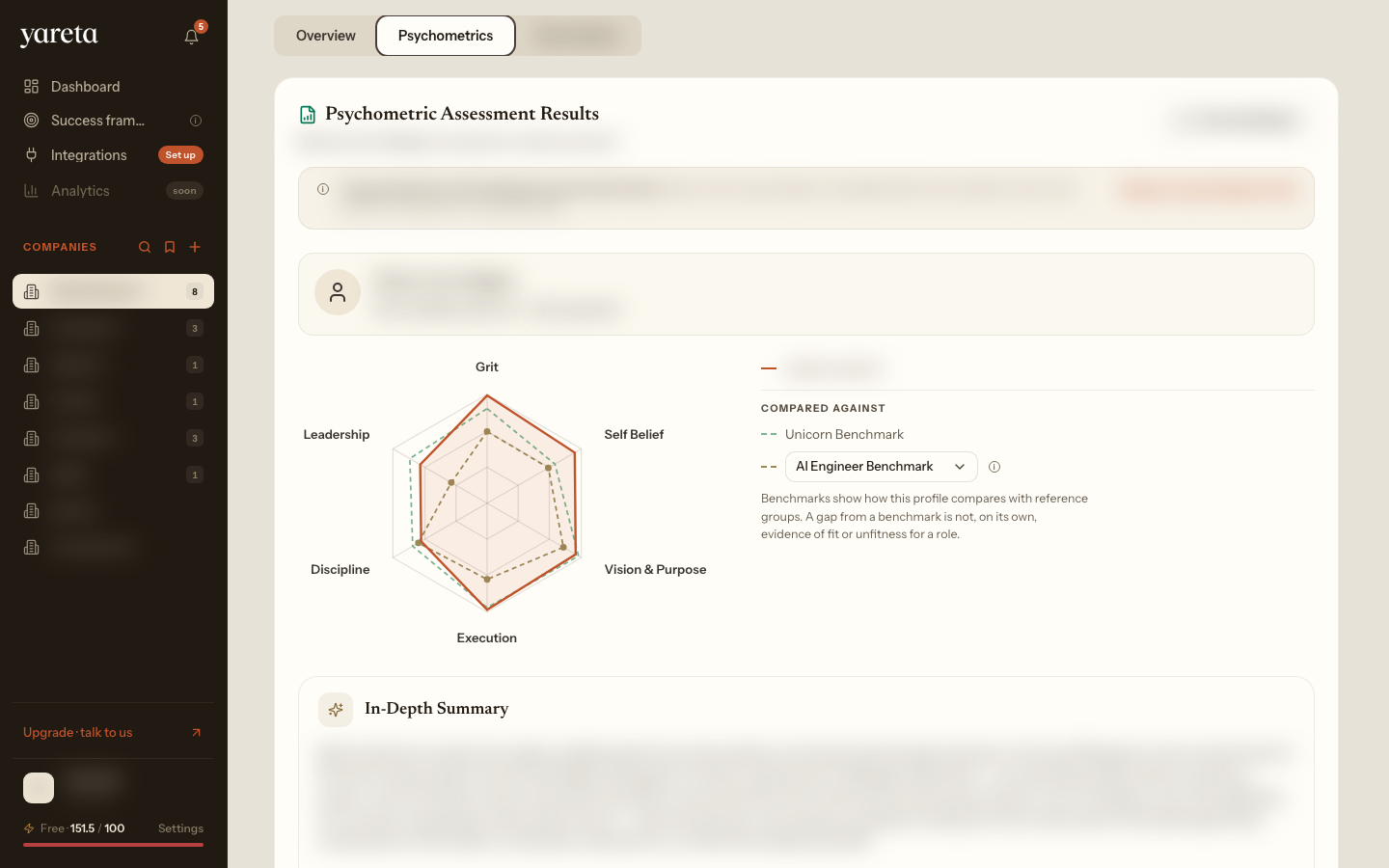
Open the Psychometrics / Insights tab on the founder profile to see completed assessment results and how they affect confidence.
Route example: /investor/:groupId/:companyId/:founderId?tab=insights
14. Company team view
Route: /investor/:groupId/:companyId
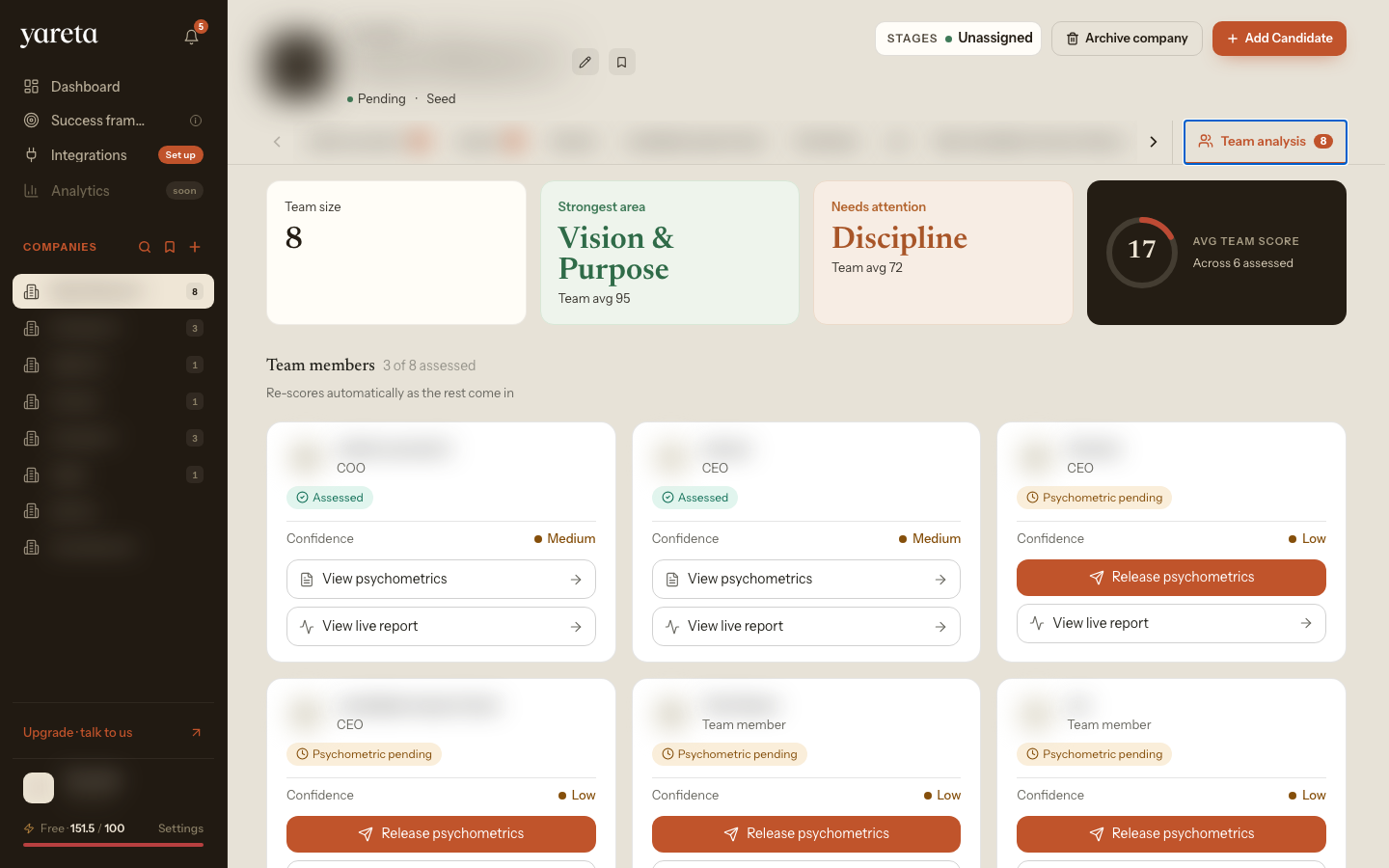
Once founders are added, the company page shows pipeline stage, bookmarks, founder cards and team-level stats. It’s the hub for the whole founding team.
15. Team analysis: Yareta DNA Team Report
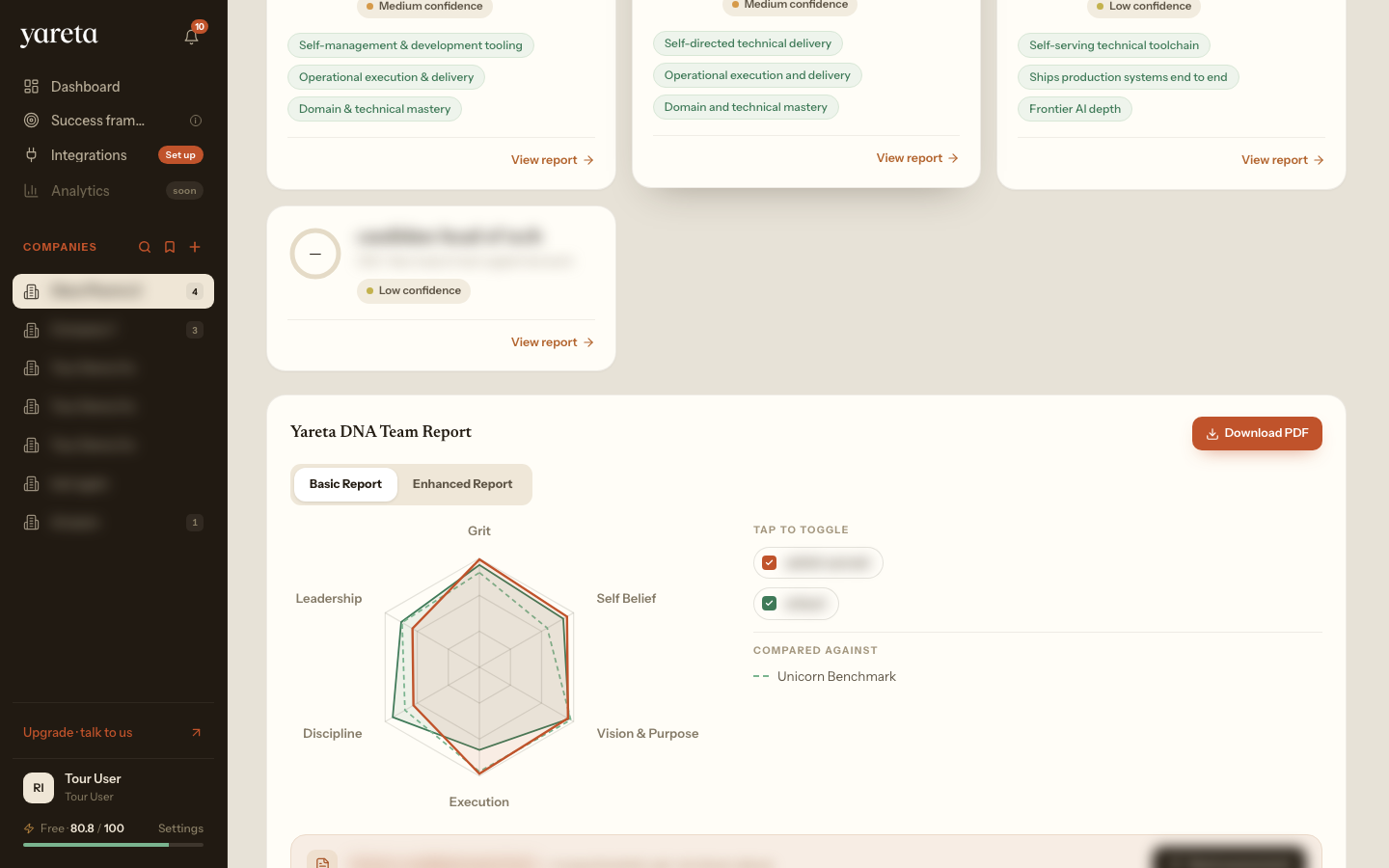
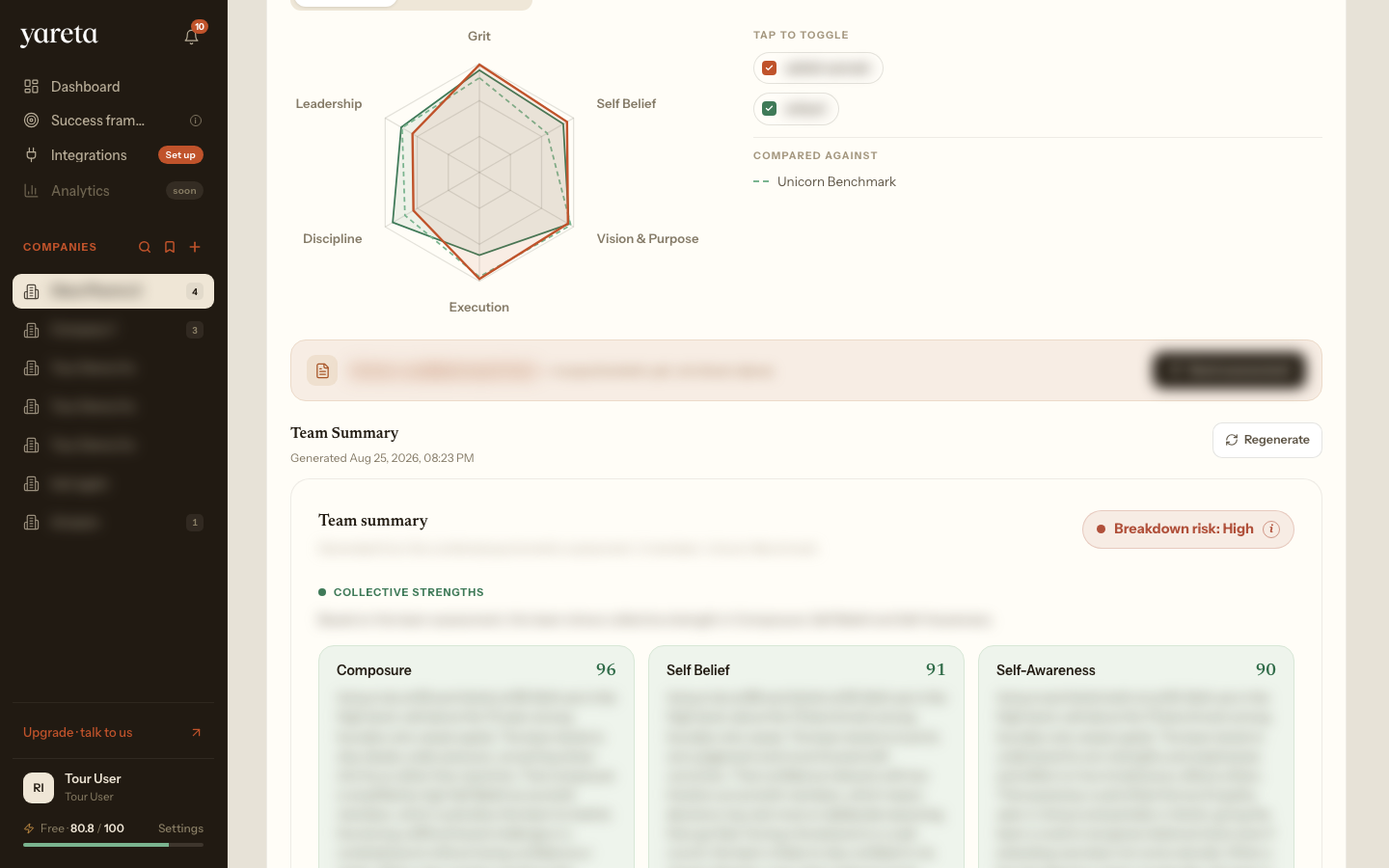
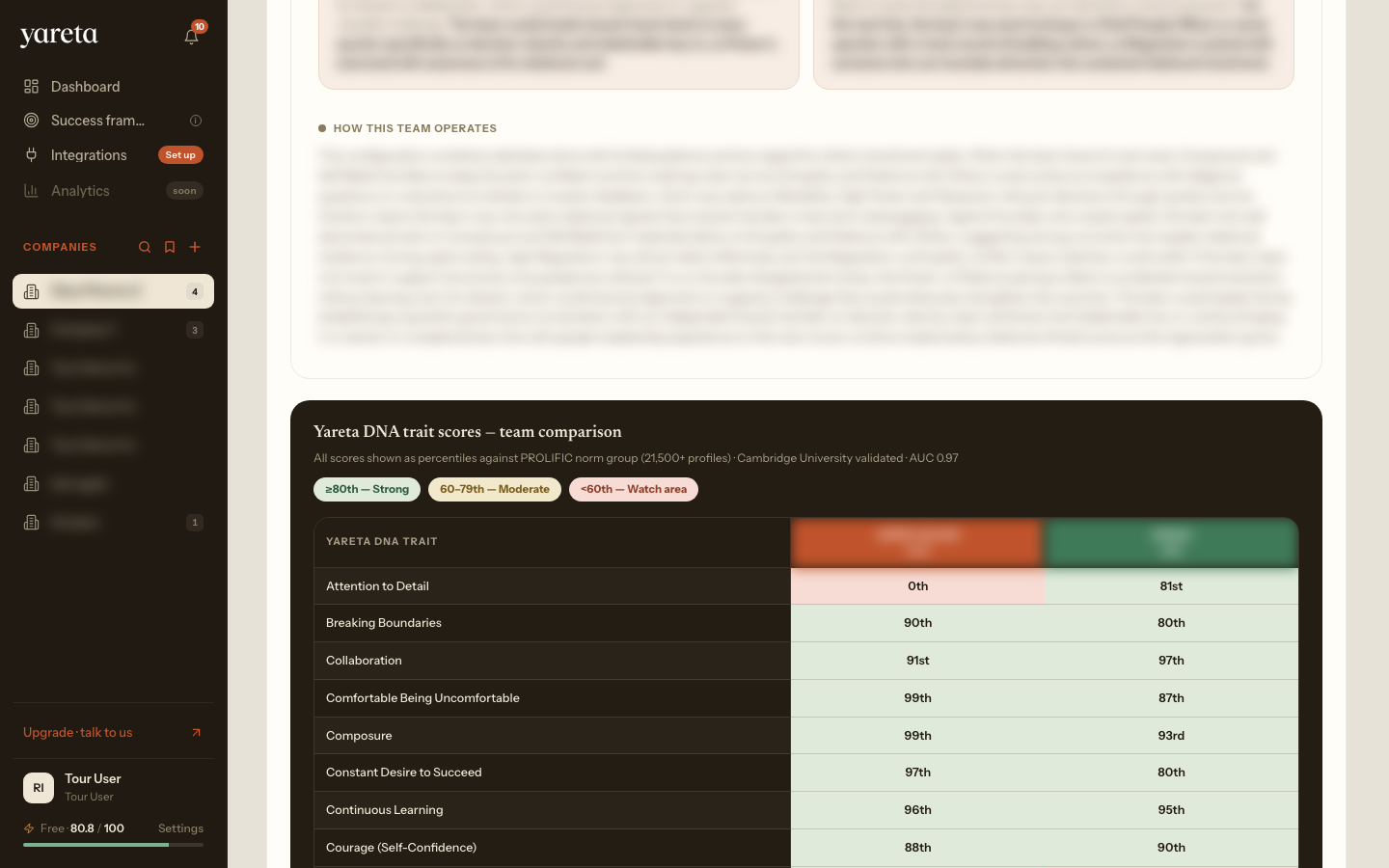
When two or more founders on a company have psychometric data, open Team analysis for the DNA report: team summary, trait comparison, coverage and gaps, breakdown risk signal and individual summaries.
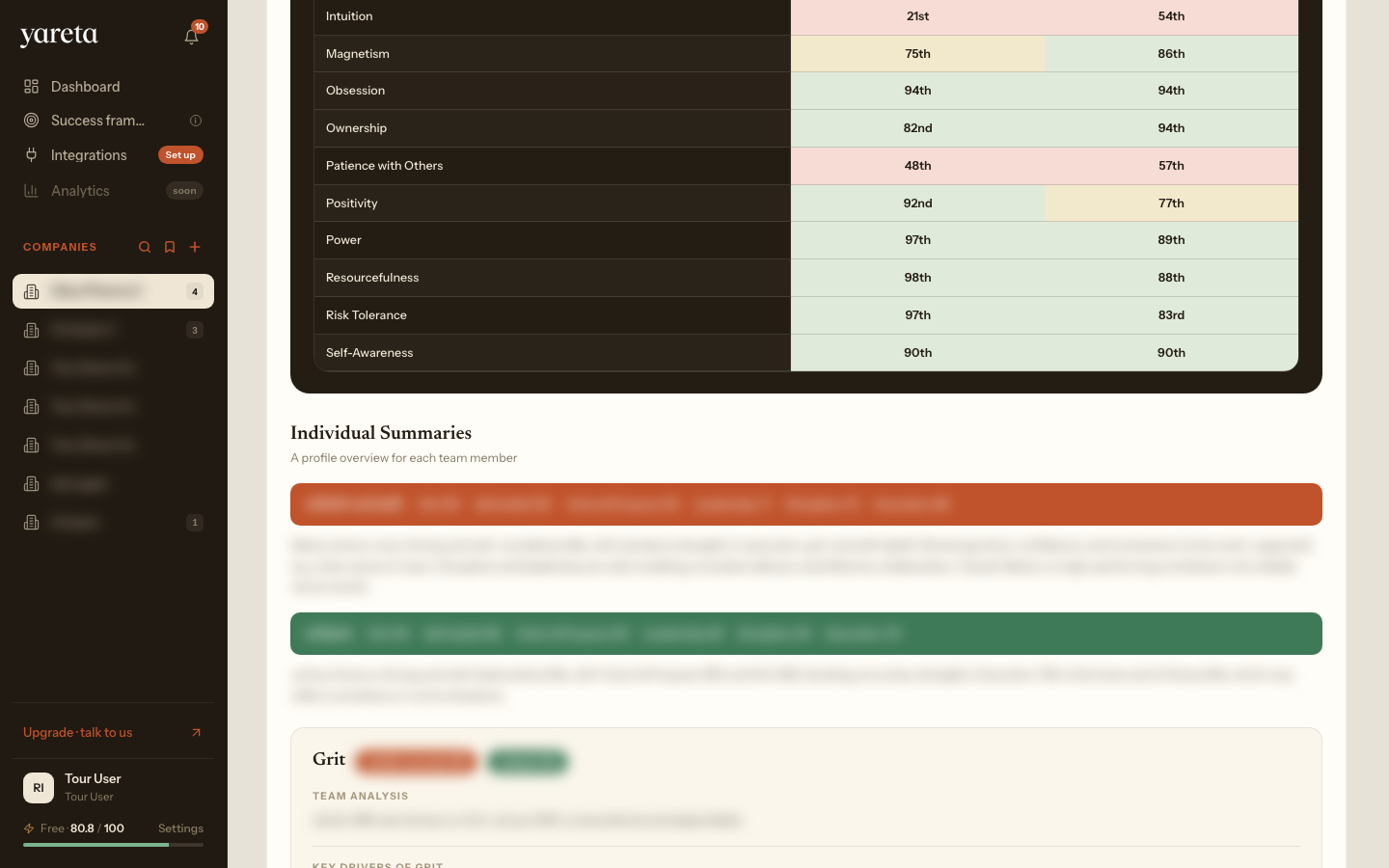
Download as PDF where enabled. Product context: Teams.
16. Bookmarks and pipeline tags
Use bookmarks and organisation tags on the dashboard or company header to filter your live pipeline. The bookmark-only view keeps focus on active deals.
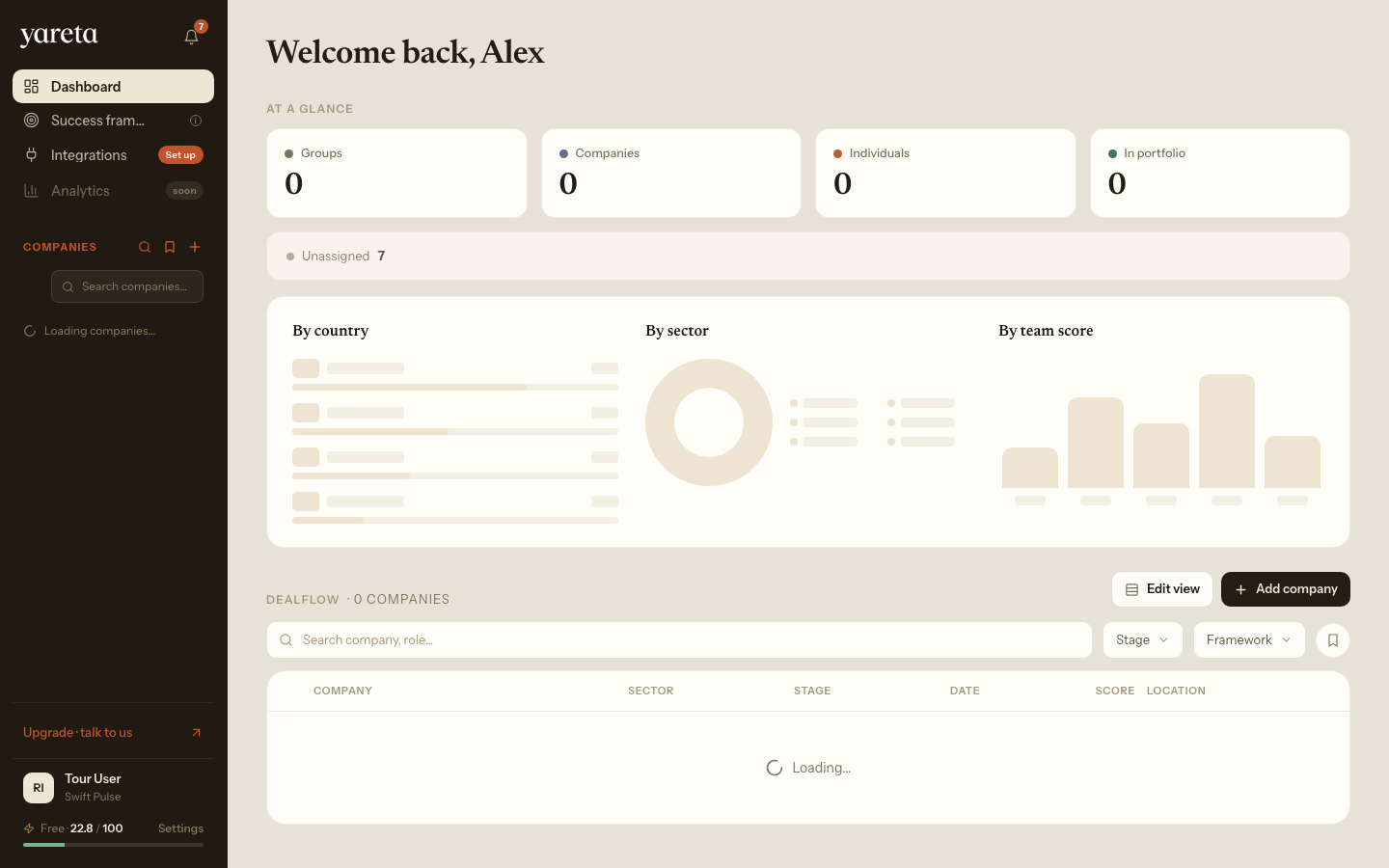
Pipeline stage labels are configured in Settings → Organization.
17. Settings
Open Settings from the profile menu at the bottom of the sidebar. Tabs include General, Notifications (Slack alerts), Organization (pipeline stages and dealflow tags), Security and Billing.
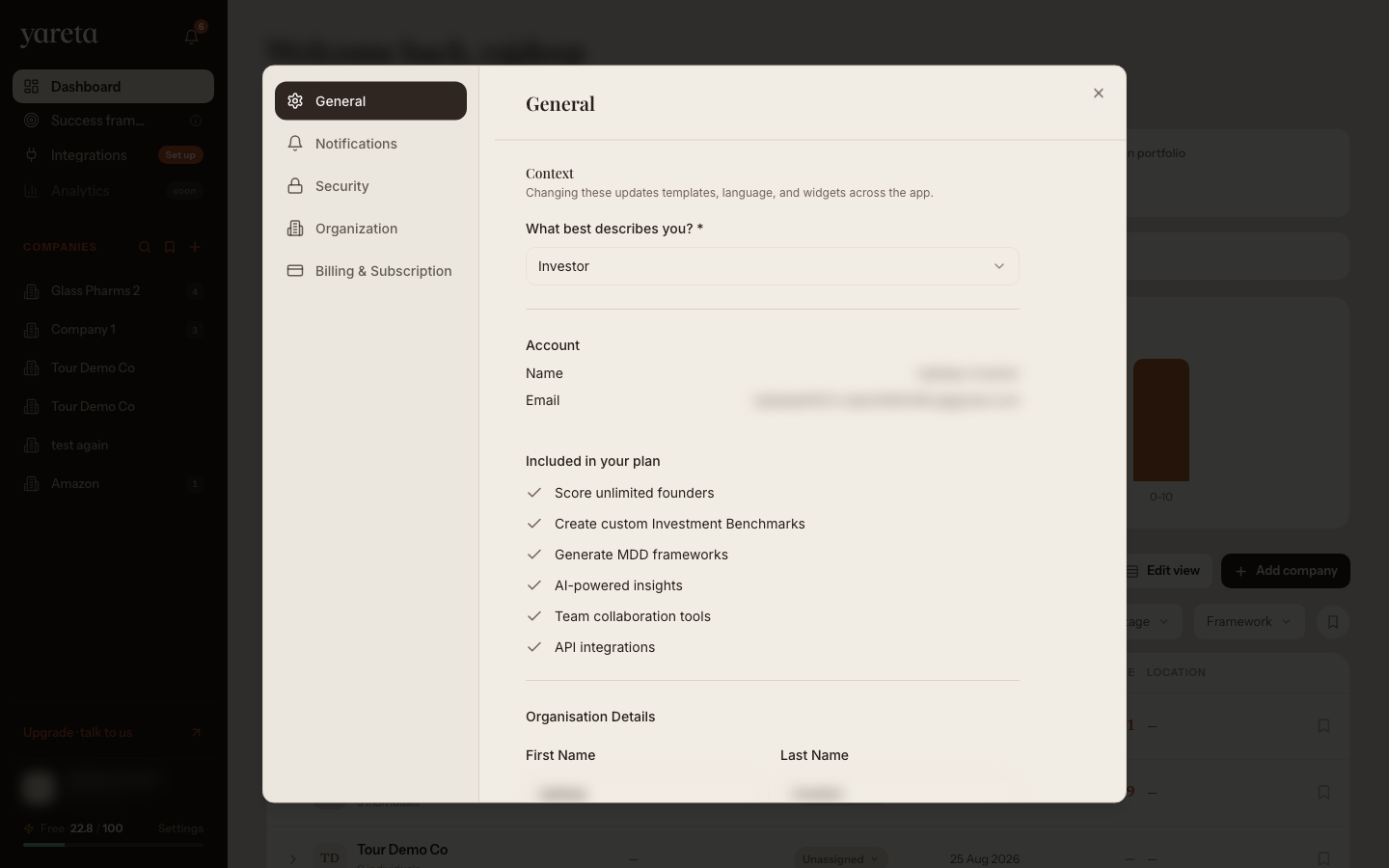
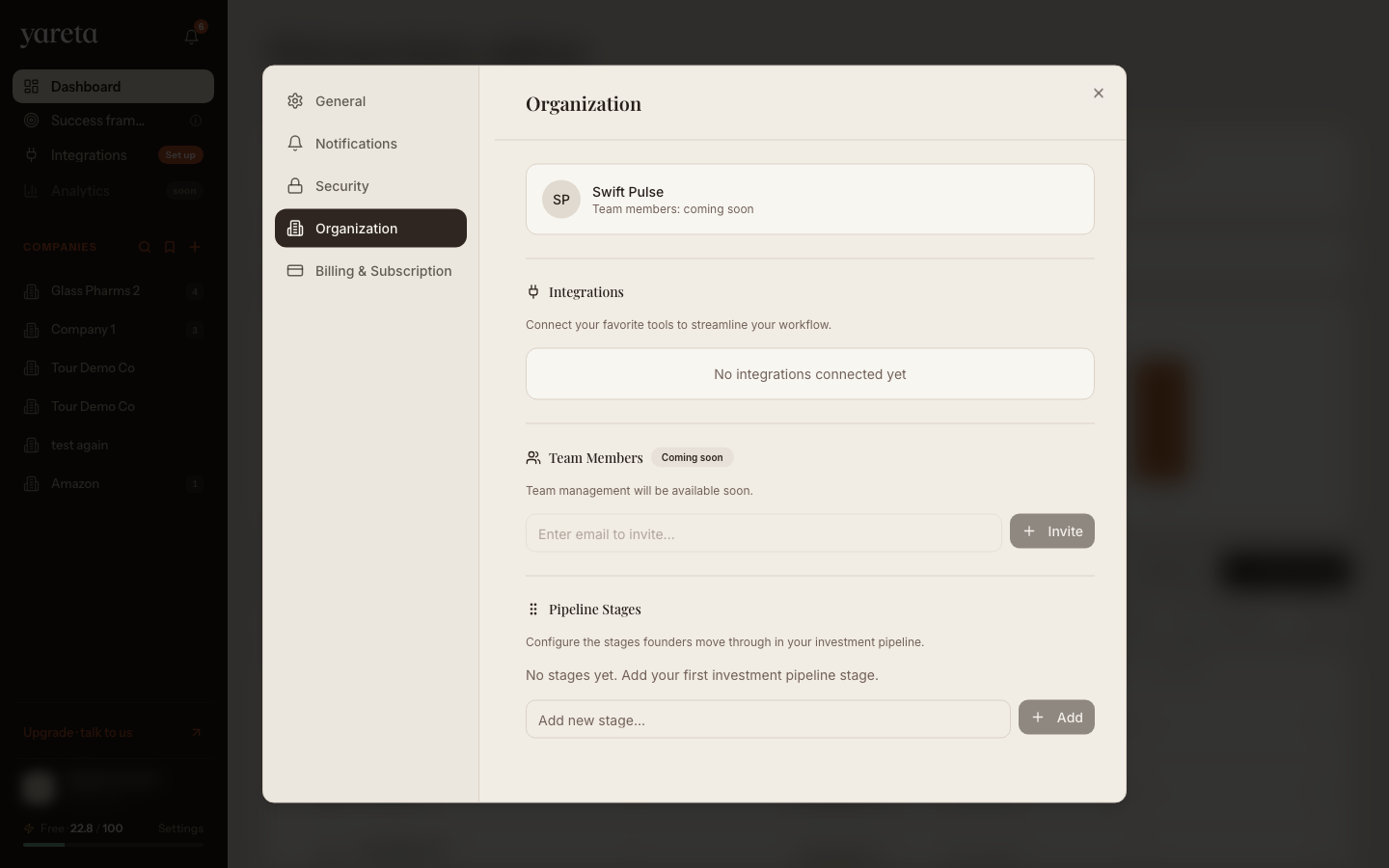
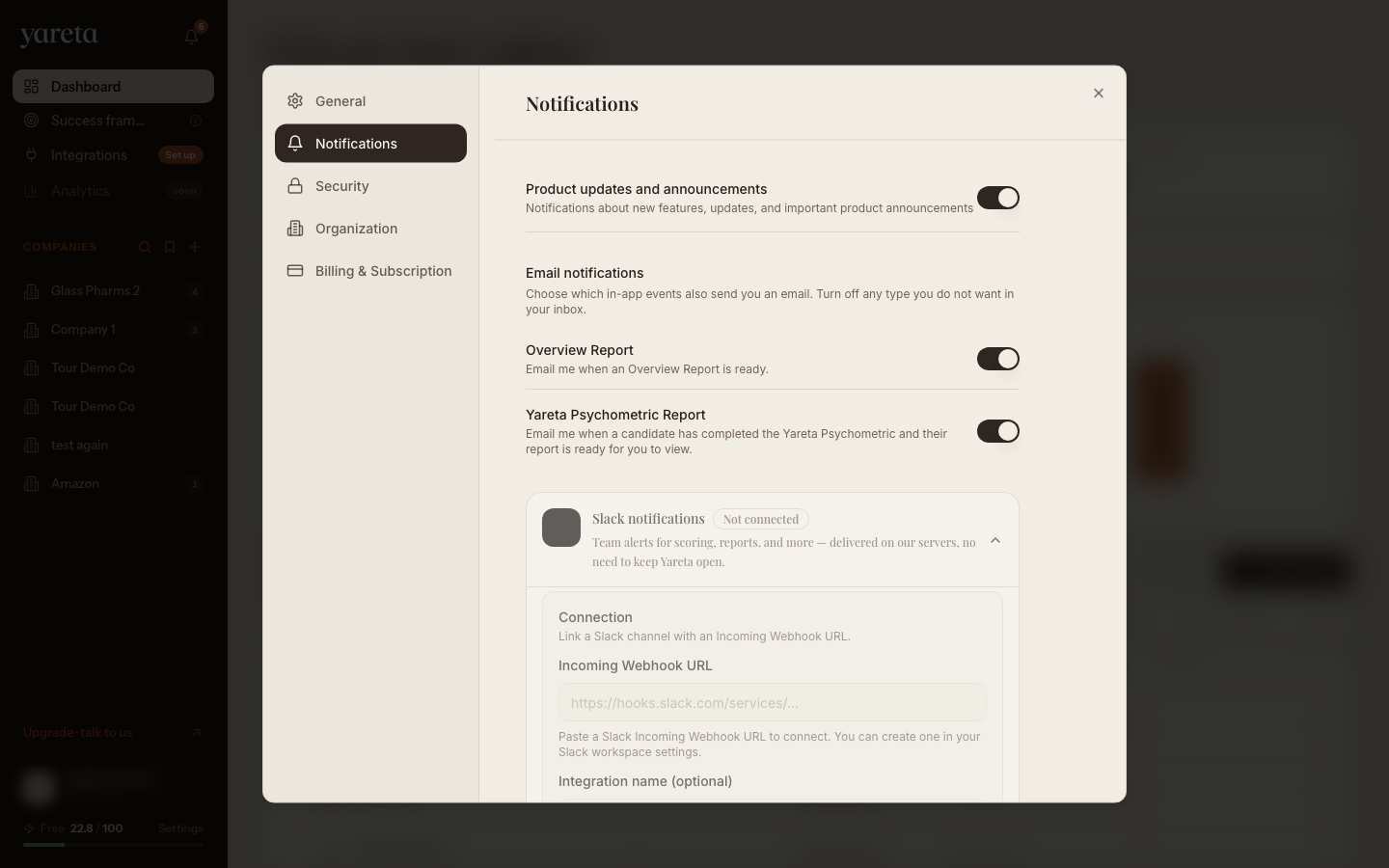
Tab reference: Settings in the app.
Typical investor loop
- Set up or choose the Success Frameworks for the roles you invest in.
- Connect your CRM, or add companies manually.
- Confirm the right framework is attached to each company.
- Let evidence land (decks, models, transcripts).
- Open each founder when scoring completes: score, flags, drivers, confidence.
- Optionally send the Yareta Assessment. Each answer can re-score.
- Open team analysis once several founders are scored.
- Export PDFs from team or founder views where enabled.
- After investment, use the same engine on portfolio teams, and share outcomes so your frameworks calibrate.
Product logic: How scoring works · Use cases — Investors.
Navigation quick reference
| Need | Route |
|---|---|
| Success Frameworks | /investor/benchmark |
| Create framework | /dashboard/investor/add-role |
| Integrations | /integrations |
| Home | /dashboard/investor |
| Group | /investor/:groupId |
| Company | /investor/:groupId/:companyId |
| Founder | /investor/:groupId/:companyId/:founderId |
| Psychometrics | …/:founderId?tab=insights |
Deleting records
Deletes are permanent in the workspace. If the CRM record still exists, a later sync may recreate it.